AI SSH Command Line Tool, a Stroke of Genius!
 A stroke of genius, the ai ssh command line tool allows the use of AI to extend beyond just
 AI dialogue questions and AI-assisted coding, and directly equips the operating system with AI capabilities. This is exactly what I've always wanted! 😄
AI is changing product design!
2025 will be the year of the AI agent explosion. The efficiency-improving access methods can be divided into three layers:
First, the middle layer is the AI agent access to services and software, such as trae.ai or draw.io + ai shared by Xiao Fu Ge, as well as some scenarios such as customer service, system inspection, and log analysis that various Internet companies use AI to improve efficiency.
Then the top layer, from the user's perspective, simulates user behavior to use software, instead of directly accessing the software API. It uses the AutoGLM-Phone-9B mobile phone model, using ADB or accessibility mode, so that the mobile phone can receive user instructions and complete operations. For example; Open Jingdong, search for Northeast old-fashioned spicy燙, add to the shopping cart, and pay for the purchase with the default address. After the order is placed and paid, send a WeChat message to xxx telling her the estimated delivery time. If you are interested, you can practice based on this article. 《手机 + agent,这是要掀桌子!》[Mobile phone + agent, this is going to turn the tables!]
Then the bottom layer, from the system level, no longer relies on directly connecting to a certain software or a certain API, but directly operates the software at the system level, or completes the entire behavior action. For example, configure jdk, maven, and docker environment on the cloud server/local, and then help me pull the git clone xxx repository code, and complete the maven build and startup locally. And it is very possible to let AI directly retrieve and process when encountering problems.
Okay, next, Xiao Fu Ge will share with you how to install an ai ssh tool (many people cannot install it without this tutorial!).
1. Tool Introduction
ai ssh is a command line tool that can be installed on Mac, Windows, and Linux to be used directly by the operating system through the terminal. Its scenarios also include using it in the terminal under IntelliJ IDEA that you open, which is naturally embedded in IntelliJ IDEA, which is very convenient.
Currently, there are also many such ai ssh command line tool software, including; opencode.ai, claude, openai codex, Alibaba Qianwen - qianwen code, all have released corresponding software.
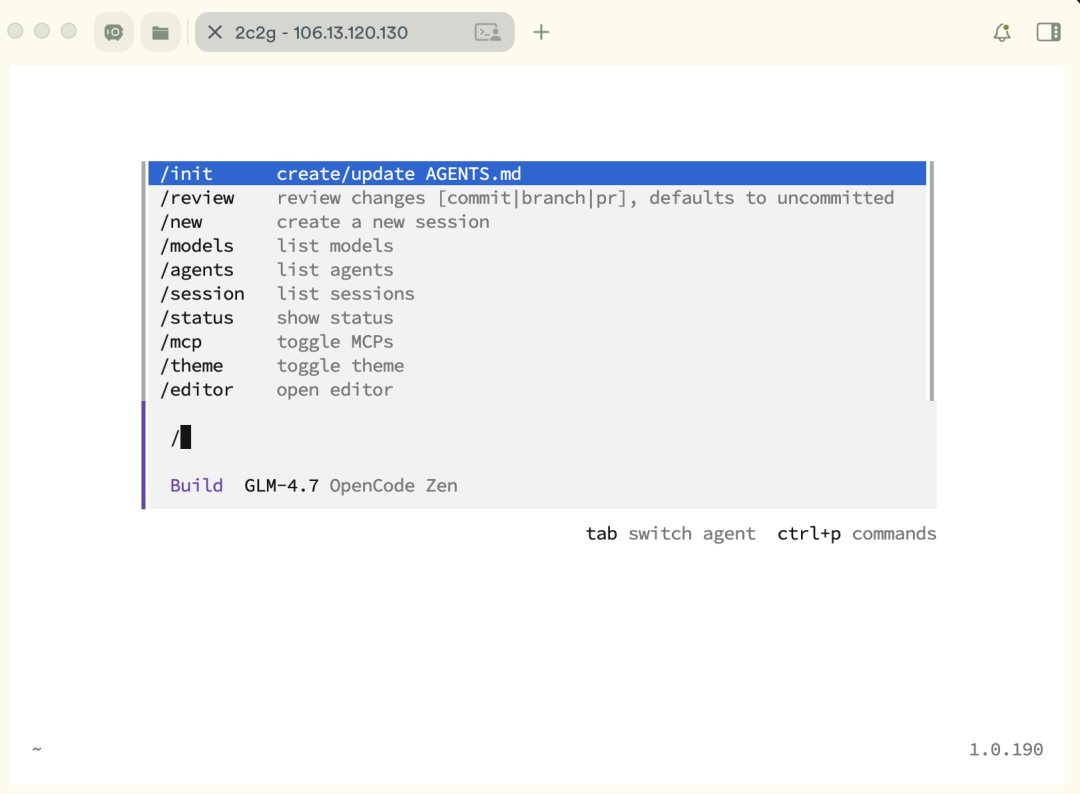
After the overall experience, the effect is still good. Here is a screenshot of the terminal usage of opencode;
-
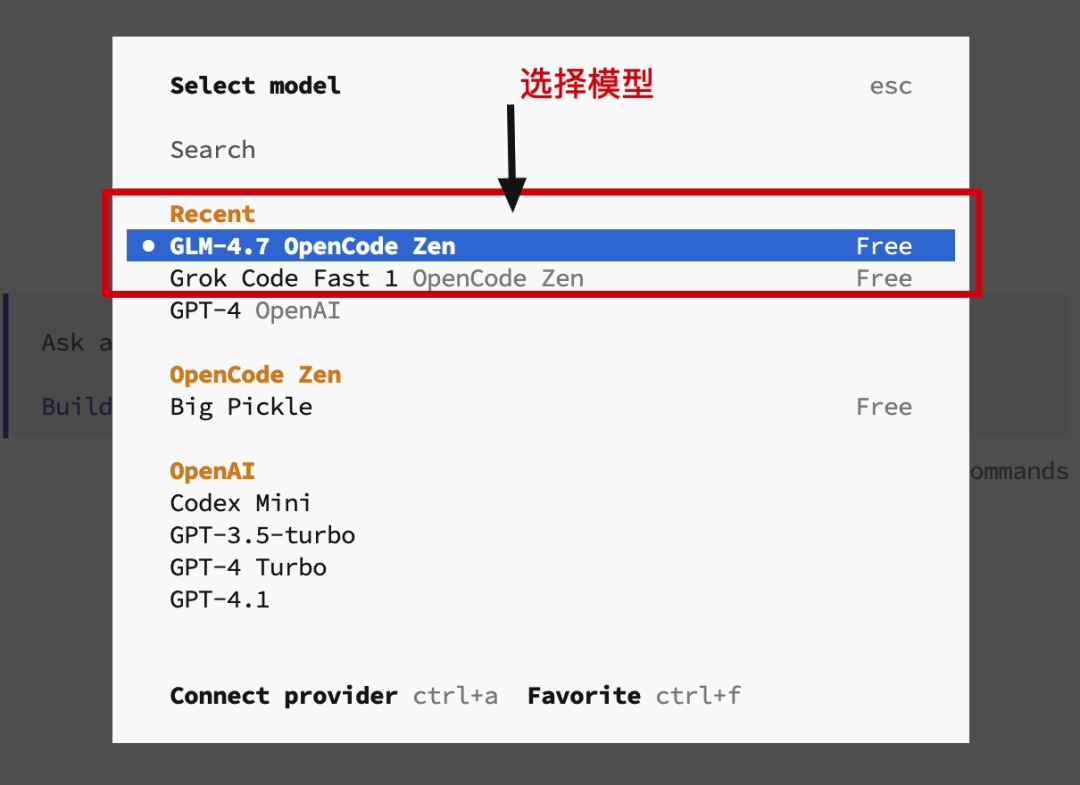
opencode provides some free models by default, you can enter
/modelsto select. -
In addition, you can also add other models through the configuration file, such as claude model, openai model, Xiaomi model, etc.
2. Software Installation
The following software installation will require gcc, nodejs 20+ version, it is recommended to install Ubuntu 24 version, you do not need to toss the system environment.
1. Script Description
This software is very useful, but its sources are all on Github. Many partners cannot install it by executing the official website script curl -fsSL https://opencode.ai/install | bash. Therefore, Xiao Fu Ge has made a corresponding script to facilitate everyone to install and use it more simply.
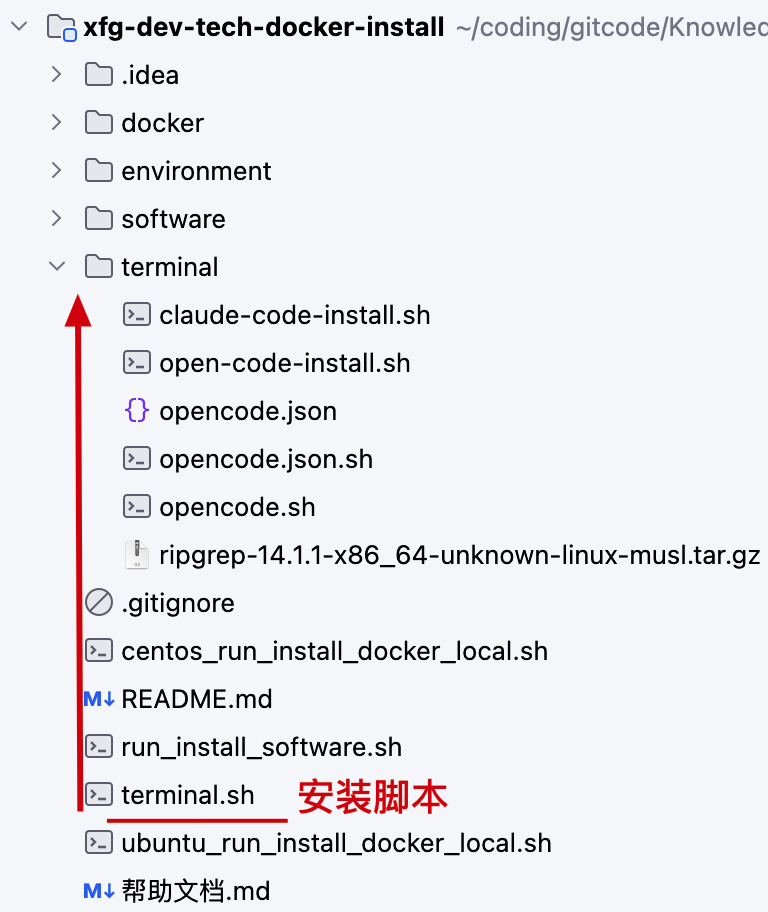
-
Script (gitcode): https://gitcode.com/Yao__Shun__Yu/xfg-dev-tech-docker-install
-
Script (github): https://github.com/fuzhengwei/xfg-dev-tech-docker-install### 2. Script Download
git clone https://gitcode.com/Yao__Shun__Yu/xfg-dev-tech-docker-install.git - You can pull the script to your local computer or cloud server using the command.
3. Script Authorization
find . -name"*.sh"-type f -exec chmod +x {} \; - Grant all permissions
chmod +x terminal.sh - Grant specific permissions
4. Execute Installation
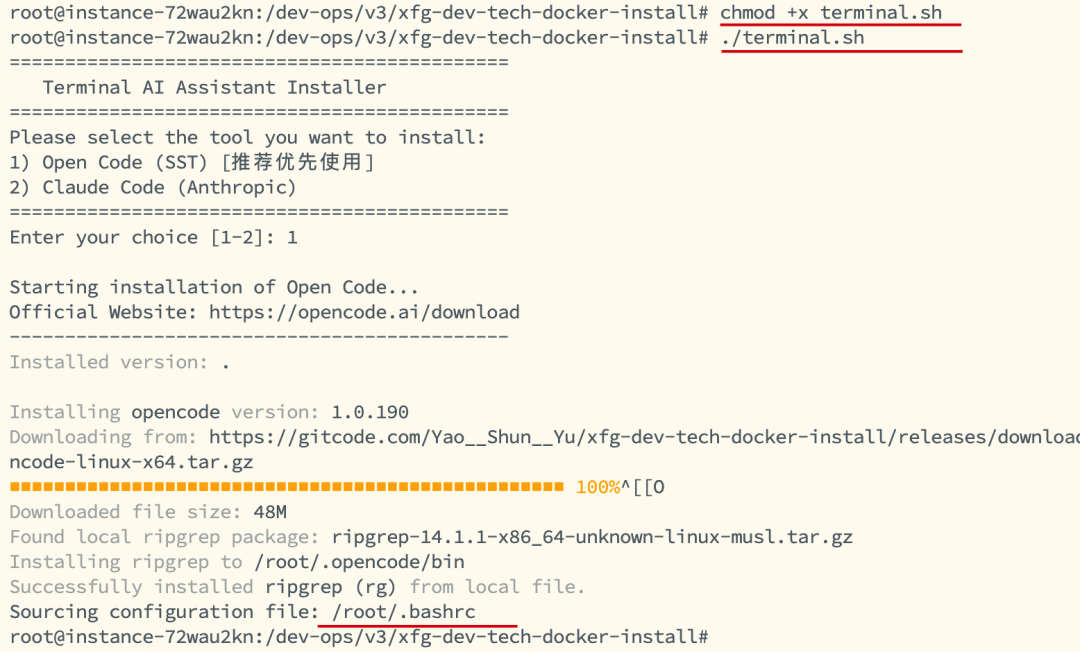
./terminal.sh - When executing the installation, select 1, opencode code, which is highly recommended.
-
This script can be used for installation on Windows, Mac, and Linux. I have prepared the corresponding scripts.
-
After the installation is complete, you need to enter
opencodeand then press Enter to enter the system. If it prompts that opencode is not a valid command, you can check if there is a promptsource .../bashrcduring the installation, and you can execute it yourself to refresh.
3. Software Configuration
1. Command Usage
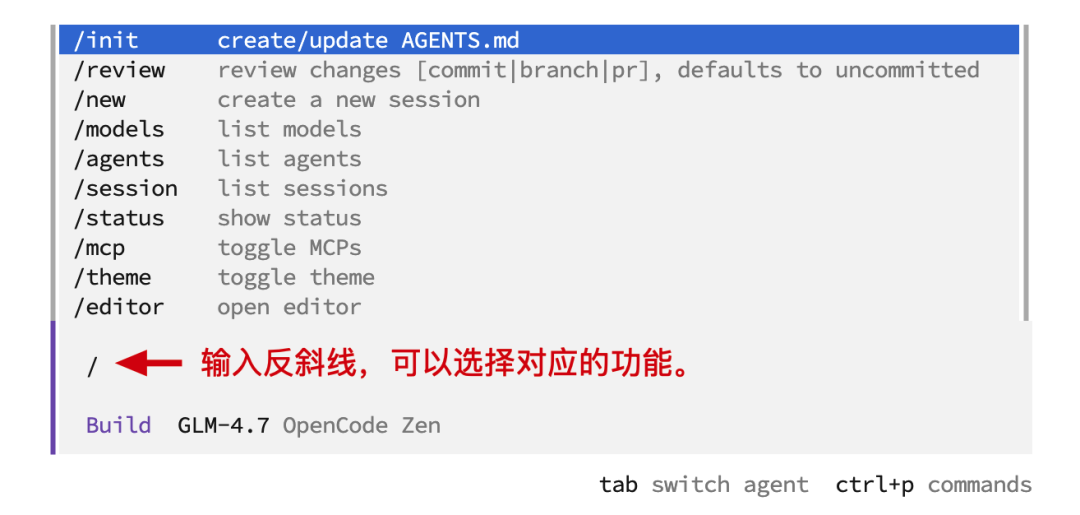
-
/init- Create/Update Agents.md" -
/review- Check changes" -
/new- Create a new session" -
/models- Select model" -
/agents- Agent mode" -
/session- Session list" -
/status- View status" -
/mcp- Select mcp service" -
/theme- Select theme" -
/editor- Edit" -
/connect- Connect model provider" -
/help- Help" -
/commands- Commands" -
/exit- Debug mode"
These may be adjusted with version updates, you can try them one by one.
2. Configure Model (Custom - Optional)
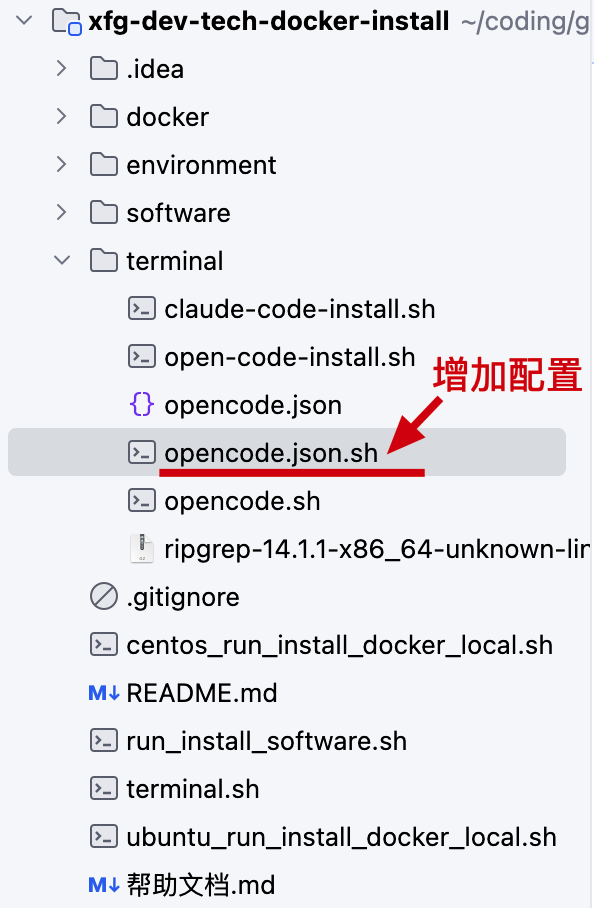
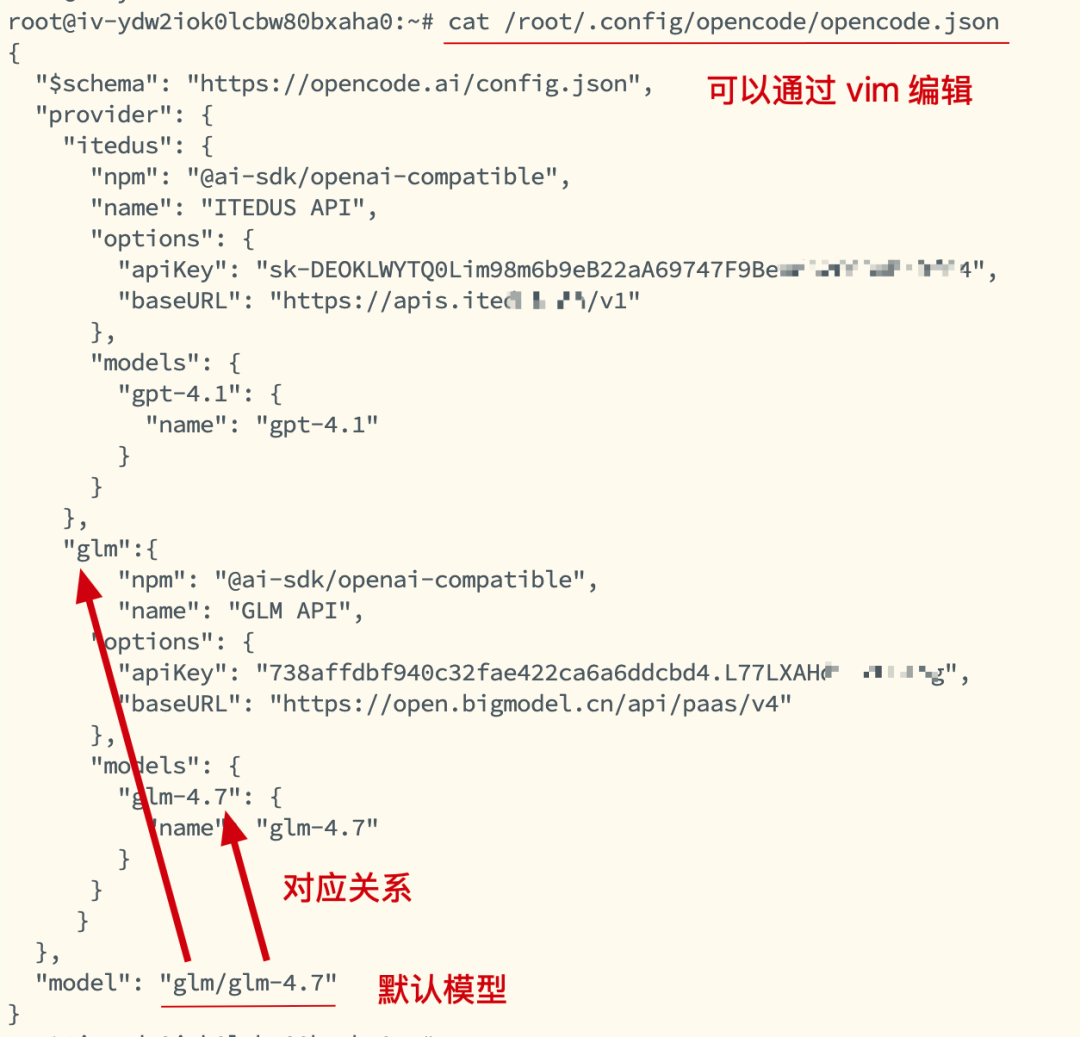
{"$schema":"https://opencode.ai/config.json","provider": {"my-model-openai": {"npm":"@ai-sdk/openai-compatible","name":"OpenAPI","options": {"apiKey":"your apikey","baseURL":"https://your baseURL/v1" },"models": {"gpt-4.1": {"name":"gpt-4.1" } } },"my-model-glm": {"npm":"@ai-sdk/openai-compatible","name":"GLMAPI","options": {"apiKey":"your apikey","baseURL":"https://open.bigmodel.cn/api/paas/v4" },"models": {"glm-4.7": {"name":"glm-4.7" } } } },"model":"my-model-openai/gpt-4.1"} - If you want to replace the model yourself, such as using openai or claude, then you need to replace it in terminal/opencode.json under the script, and then execute ./opencode.json.sh to create it.- If you have executed ./opencode.json.sh and want to change the configured model, you can edit /root/.config/opencode/opencode.json using the vim command.
- For other configurations like mcp, you can refer to the official website (to avoid incorrect configuration adjustments): https://opencode.ai/docs/mcp-servers/
Three, Software Usage
1. Linux
1.1 Build Project
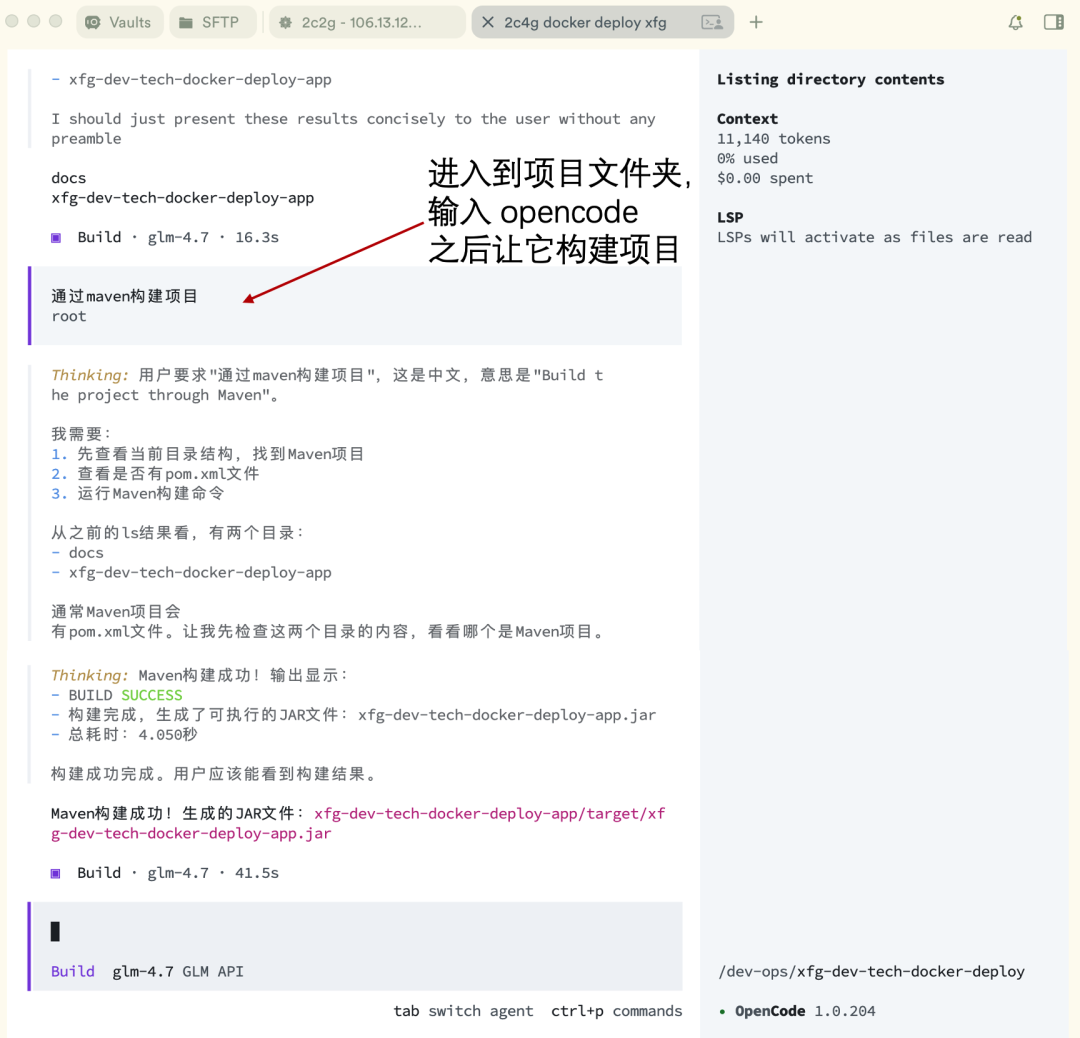
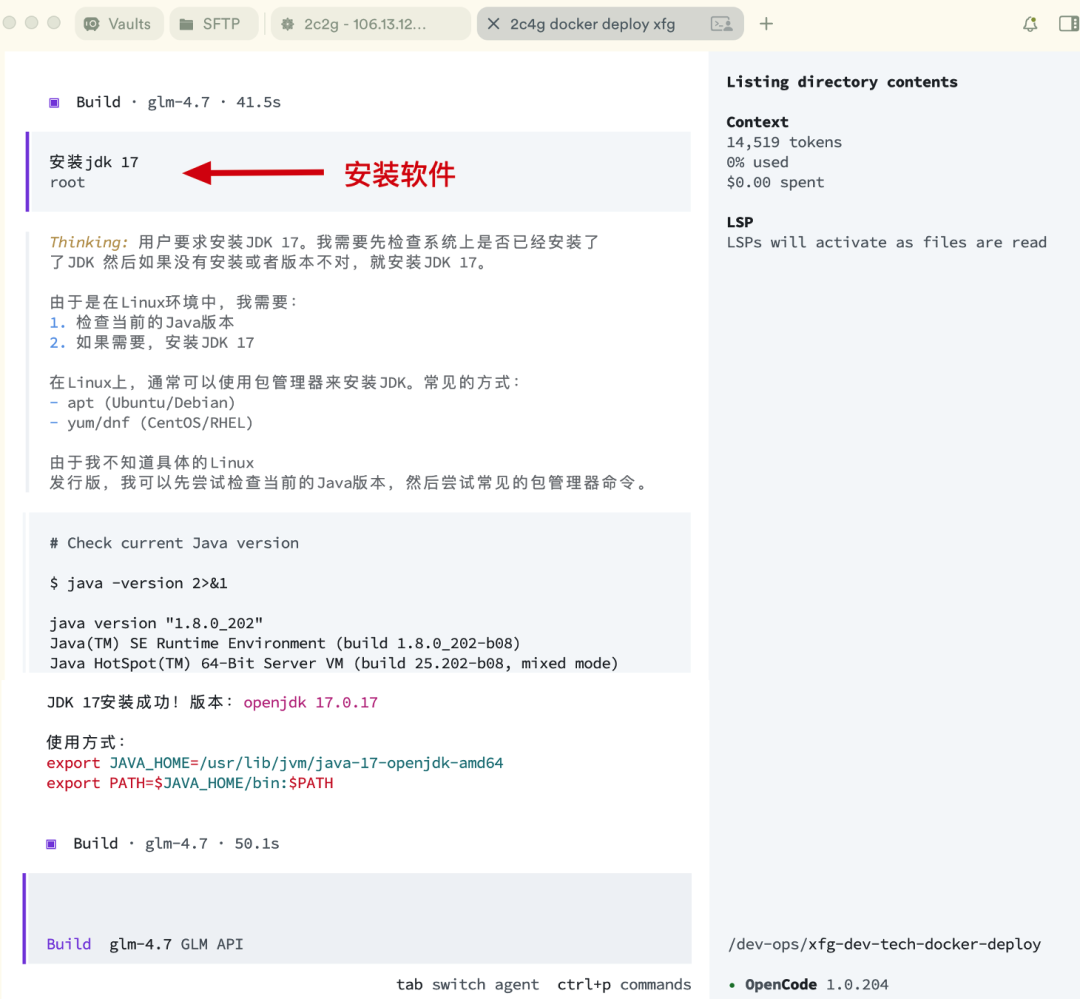
1.2 Install Software
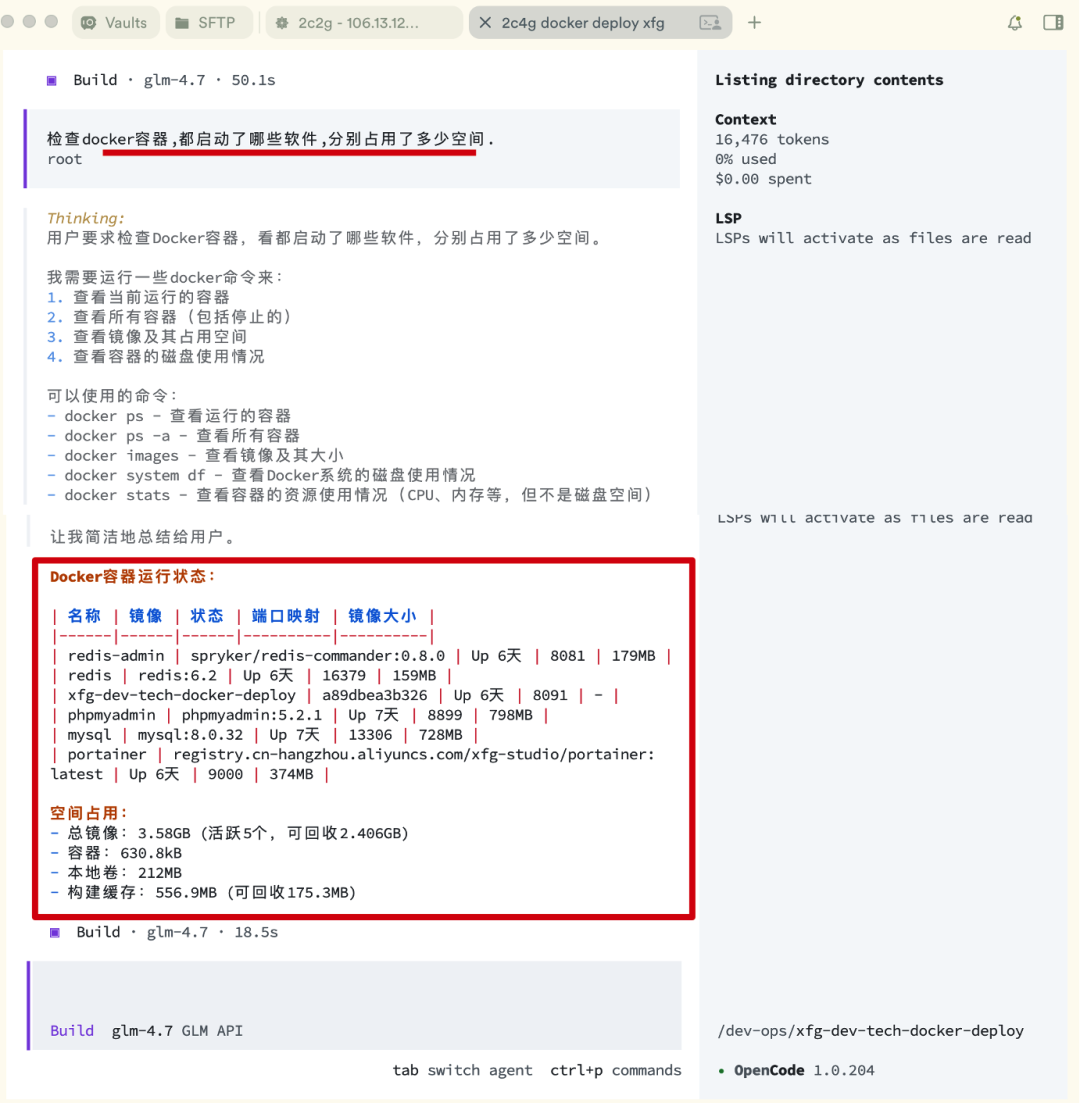
1.3 Inspect System
1.4 Write File
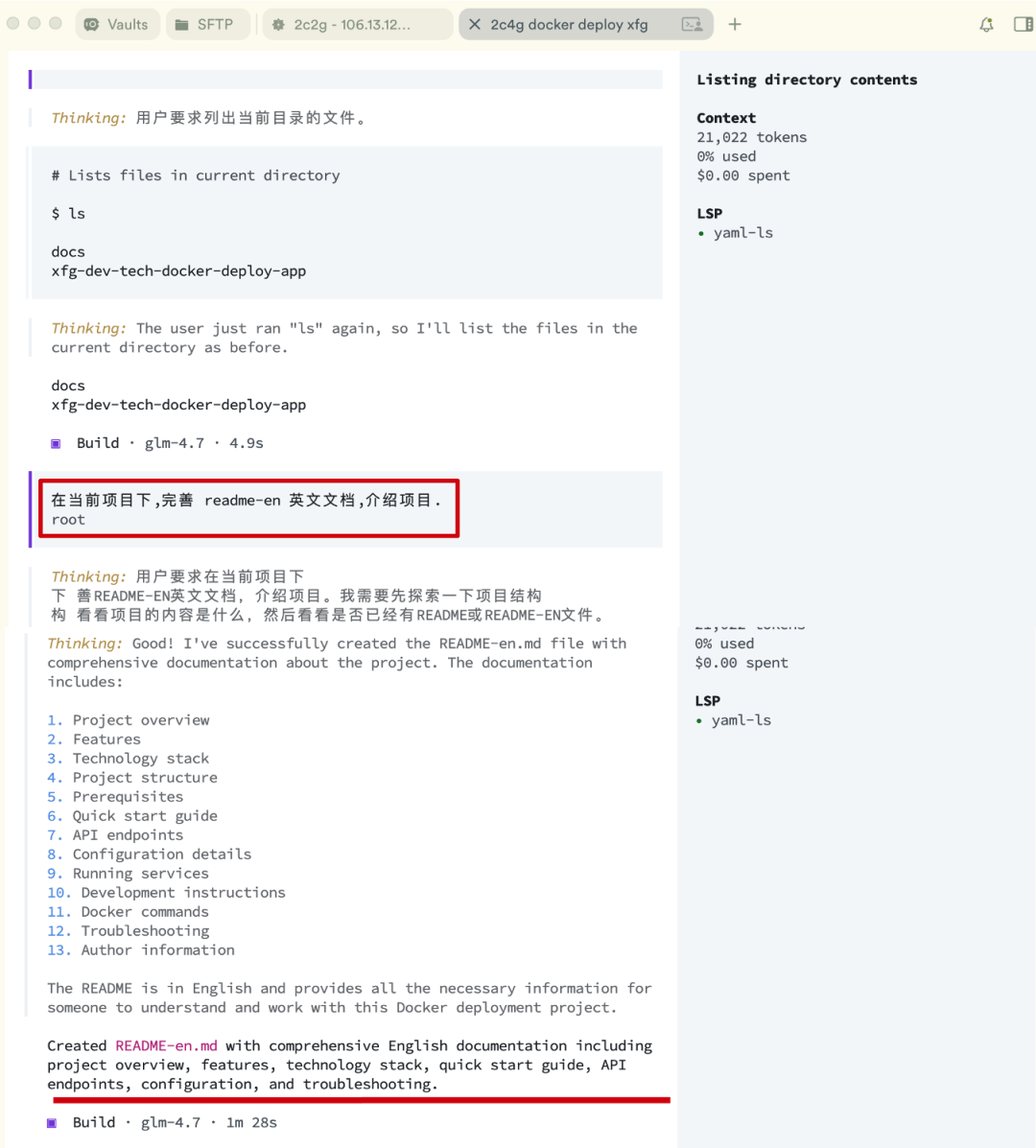
Operating cloud servers through commands is very convenient, especially for many novice partners. With this, it can be said to be like adding wings to a tiger for novices! Open up your thinking, you can use it in more places, especially for partners who have difficulty installing environments.
2. Mac/Windows + IntelliJ IDEA
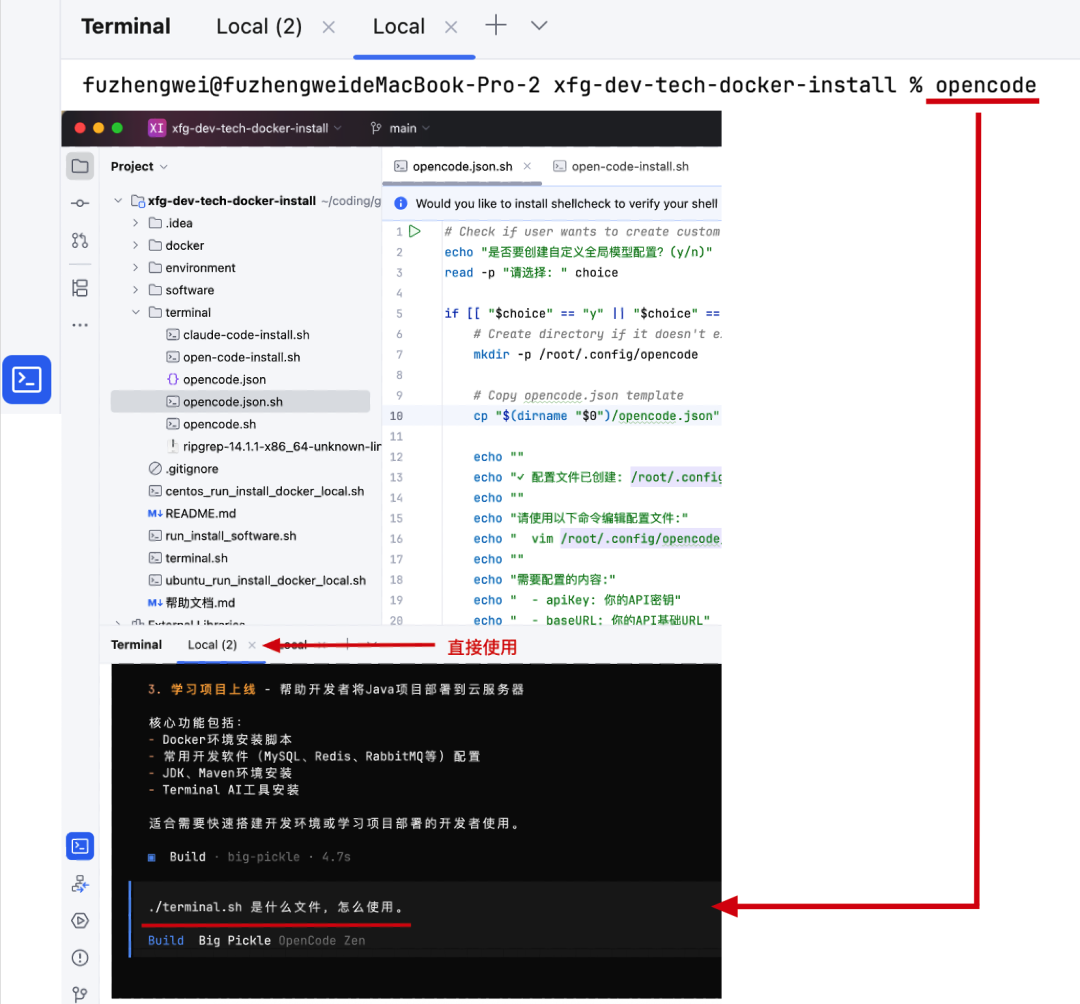
-
On a local computer, in addition to installing and checking various software like the Linux example, you can also directly open it in IntelliJ IDEA and then manage your project.
-
Especially for many partners who get a project and don't know what's inside or what the script does, you can use opencode to help you solve it.
3. IPad Pro
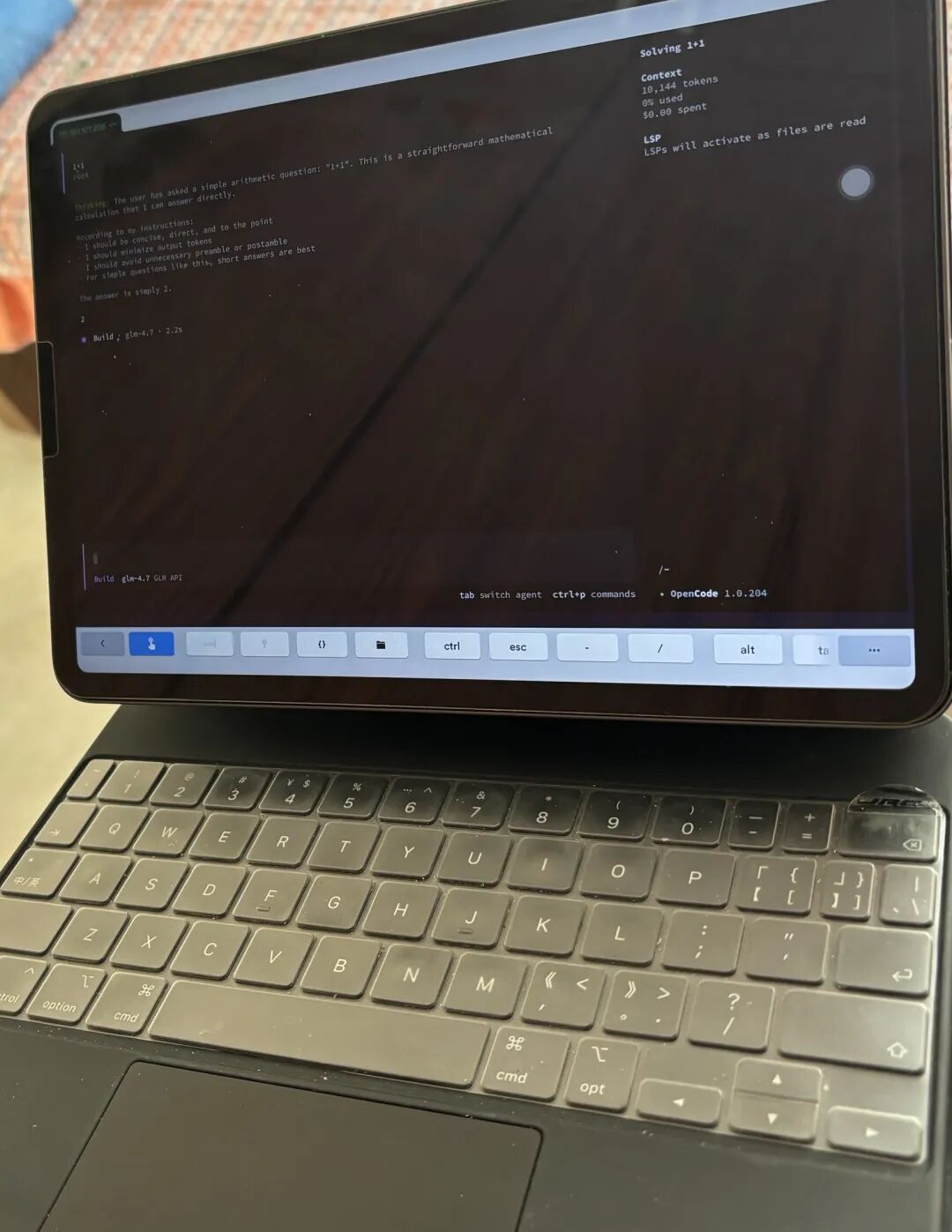
Although IPad Pro doesn't have much development software, if you are using cloud servers, Nas, etc., and install opencode in these software, then you can also install the termius.com SSH tool on IPad Pro and operate the Linux system deployed with opencode through the SSH tool.Now, for daily outings, bringing an IPad Pro can also handle some minor development maintenance, which is very convenient. IPad Pro + Nas is super comfortable!



