Claude Code Secretly Upgraded, Finally No Longer a "Text Search Machine"
When you write code, have you ever thought about a question:
Why can you directly jump to the function definition by pressing Ctrl + Click in VS Code? Why can you see the complete parameter description when you hover your mouse over a function? Why can your editor tell you where you're wrong before your code even runs?
You use these features every day and enjoy them immensely.
But you may not know that behind all of this is something called LSP (Language Server Protocol) supporting it.
More importantly, starting with Claude Code version 2.0.74, it also supports LSP.
What does this mean?
It means Claude Code has finally transformed from a "text search machine" into an AI that truly understands code.
What is LSP? In Plain Language
LSP is a protocol created by Microsoft, and the purpose is very simple:
To allow code intelligence features to be used in any editor.
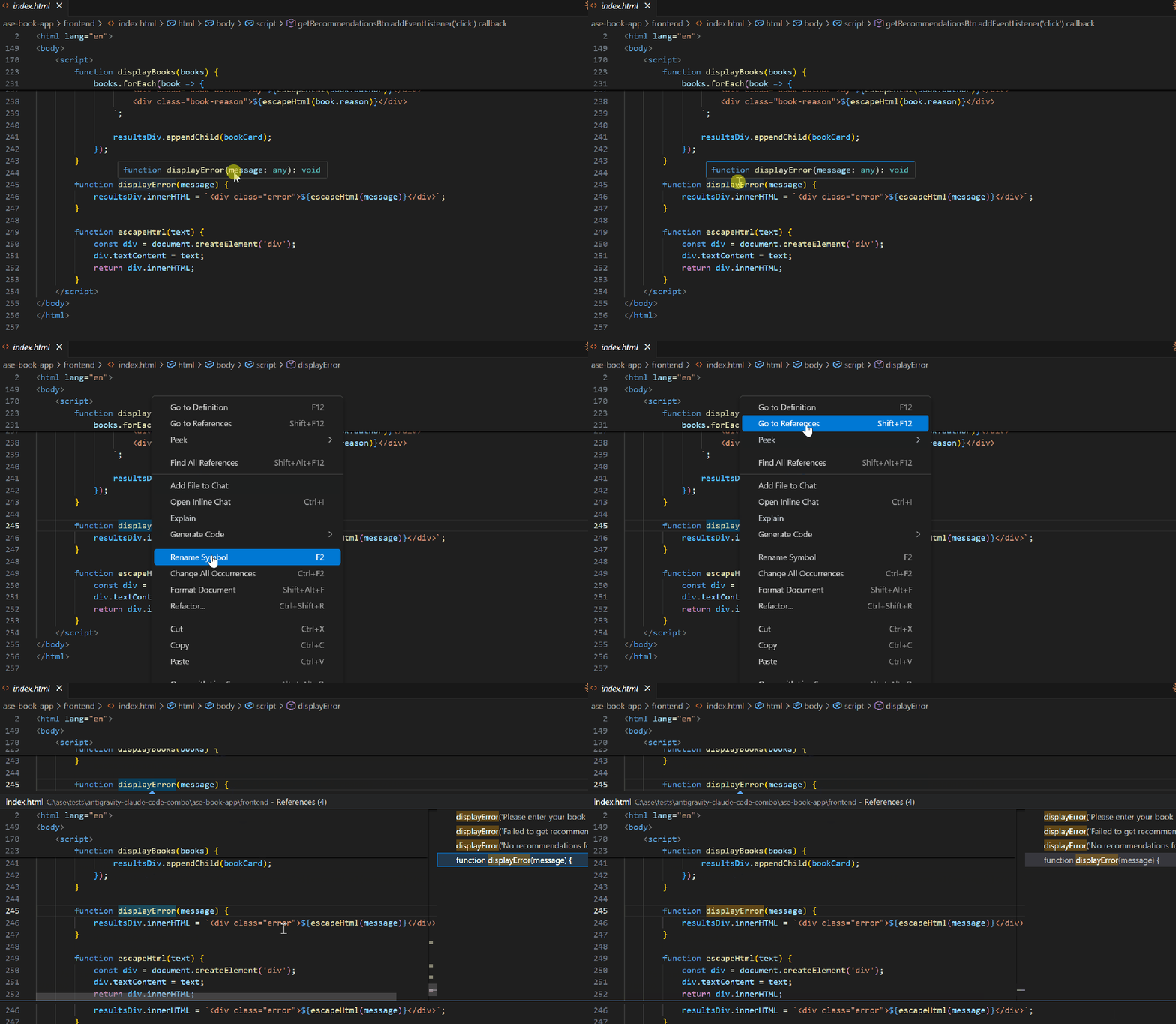 Look:
Look:
-
TypeScript's language server can be used in VS Code, JetBrains, and Cursor
-
Now, it can also be used in Claude Code
LSP is the thing that makes your editor smarter:
-
Autocomplete function names and parameters
-
Jump to definition
-
Find all references
-
Hover to display documentation
-
Real-time error reporting and warnings
You use these features countless times every day when writing code.
But you never thought about how it was implemented.
Now you don't have to think about it, just know: Claude Code now has these capabilities too.
How Did Claude Code Work Before?
Before supporting LSP, what did Claude Code have to do to find where a function was defined?
Rely on grep search.
In short, it's a full-text search to find where the characters "displayBooks" appear.
Is this usable? Yes, it is.
AI models are trained on massive amounts of code and can indeed infer a lot from the text.
But what's the problem?
It doesn't really understand the code structure.
It's like asking someone to find "Zhang San", and they can only flip through the address book page by page to find the two characters "Zhang San".
But when you use your phone to search for "Zhang San", you directly query the database and get the result in seconds.
That's the difference.
Previous Claude Code: Read each file and rely on text matching. Current Claude Code: Directly ask the language server for precise positioning.
The difference in efficiency is significant.
What Has LSP Brought to Claude Code?
5 core capabilities, each of which is an efficiency tool:
1. goToDefinition - Jump to Definition
What can you do with Ctrl+Click in VS Code? Directly jump to the function definition.
Now Claude Code can do the same.
You ask it: "Where is the processRequest function defined? Using LSP"
It won't search all the files stupidly.
It directly asks the language server and gets the answer in seconds: file name, line number, precise location.
2. findReferences - Find All References
This is a killer feature.
You want to refactor a function, but you don't dare to change it, fearing that it will break other places.
What to do?
Before, you had to let Claude Code read the files one by one, which was terribly slow.
Now directly ask: "Where is the displayError function called? Using LSP"
The language server directly lists all the reference locations for you.
Fast, accurate, and ruthless.
3. hover - Get Documentation and Type Information
When you hover your mouse in VS Code, you can see the function signature, parameter types, and documentation.
Claude Code can now see it too.
Ask it: "What parameters does the displayBooks function accept? Using LSP"
It doesn't have to guess, it directly reads the signature returned by the language server.
Especially for dynamic languages like Python, Claude could only infer the type based on the context before.Now with LSP, type information is clear at a glance.
4. documentSymbol - List all symbols in a file
Want to quickly understand what classes, functions, and variables are in a file?
Ask Claude: "What symbols are in backend/index.js? Use LSP"
It returns a structured list, clearly.
5. workspaceSymbol - Full project symbol search
This is even more powerful.
It doesn't search for text, it searches for symbols.
Want to find all methods containing "innerHTML"?
The language server finds them directly for you, not string matching, but real code symbols.
Practical Application: What problems can LSP actually solve?
Stop talking about abstract things, let's look at real-world examples.
Example 1: Tracking function calls
There's a project called AseBook Finder, and the frontend has a displayBooks function.
You want to know where this function is called.
What did you do before? Claude Code grep once, may miss, may false positives.
Now just ask: "Find all references to displayBooks using LSP"
Result:
-
Function definition location
-
Location called after fetch succeeds
-
All other places of reference
Accurate, fast, and no omissions.
Example 2: Understanding function parameters
You want Claude to generate a piece of code that calls the displayError function.
But you're not sure what parameters this function accepts.
Ask it: "What parameters does displayError accept? Use LSP"
The language server returns directly: accepts a message parameter.
Claude knows, and the generated code will not be wrong.
Example 3: Finding API calls
You want to find where in the project the /api/recommendations interface is called.
Ask Claude: "Find all references to /api/recommendations using LSP"
It finds the location of the fetch call, accurate to the line.
Debugging API issues and tracking data flow is super useful.
Example 4: Discovering errors in advance
You are refactoring code and accidentally misspelled a variable name.
Normally, you have to run the code to find out.
But with LSP, the language server checks in real time and reports the problem to Claude Code immediately.
Claude tells you there's an error here before you run the code.
How to set it up? 5 steps to complete
Don't panic, the setup is very simple.
Step 1: Enable LSP tools
Add a line to your shell configuration file (.bashrc or .zshrc):
export ENABLE_LSP_TOOLS=1 then run source ~/.zshrc to take effect.
Step 2: Install the language server plugin
Open Claude Code and enter:
/plugin find the plugin corresponding to the language you are using:
-
Python: Select pyright-lsp
-
TypeScript/JavaScript: Select vtsls or typescript-lsp
-
Go: Select gopls
-
Rust: Select rust-analyzer
Select "Install for me only" to install.
Step 3: Install the language server binary file
The plugin is just an interface, the language server itself does the real work.
Python:
pip install pyright TypeScript/JavaScript:
npm install -g @vtsls/language-server typescript Go:
go install golang.org/x/tools/gopls@latest Rust:
rustup component add rust-analyzer
Step 4: Restart Claude CodeAfter installation, restart Claude Code.
claude
Step 5: Verify if it Works
Enter /plugin and check the "Installed" tab to see if your plugin is there.
Test it out:
Find all references of someFunction using LSP If Claude Code uses the find_references tool instead of grep, it means it's successful.
When to Use LSP? When Not to?
LSP is not a panacea.
Scenarios Suitable for LSP:
-
Large projects (hundreds of files)
-
Cross-file function call tracing
-
Requires precise function signatures (especially dynamic languages)
-
Refactoring code, afraid of introducing bugs
Scenarios Not Suitable for LSP:
-
Small projects, quick scripts
-
Simple text search
-
Just finding where a string is located
In short, use grep when it's fast, and use LSP when it's accurate.
Tools are for serving people, not for using for the sake of using.
Several Pitfalls, Let Me Tell You in Advance
Pitfall 1: Language Server Must Be in PATH
If Claude Code says "No LSP server available", it's likely that your language server is not installed correctly or is not in PATH.
Run which pyright (or your language server) in the terminal to see if it can be found.
Pitfall 2: Restart After Installing the Plugin
After installing a new plugin or updating the language server, be sure to restart Claude Code.
Language servers are loaded at startup.
Pitfall 3: Sometimes You Need to Explicitly Say "Use LSP"
If you find that Claude Code is still using grep instead of LSP, add "Use LSP":
Find all references of authenticateUser using LSP This way it knows to use the language server.
Pitfall 4: No Visual Hints
Unlike VS Code, Claude Code does not tell you whether the LSP server is running.
No status bar icon, no notifications.
The only way to confirm: actual testing.
A Few Words at the End
Claude Code's support for LSP is not a small update, but a qualitative change.
Previously it was "text search + AI inference".
Now it is "language server + AI understanding".
It's like you've gone from flipping through a phone book to using a search engine.
The difference in efficiency is enormous.
If you are using Claude Code for a serious project, take 5 minutes to set up LSP.
These 5 minutes are worth it.
Action Checklist:
-
Add
export ENABLE_LSP_TOOLS=1to the shell configuration -
Open Claude Code and run
/pluginto install your language plugin -
Install the corresponding language server binary file
-
Restart Claude Code
-
Test "Find all references of XXX using LSP"
After installation, you will find:Originally, Claude Code can be this fast.



