Claude Code Unleashes Team Battle Mode! Agent Teams You Must Start Using!
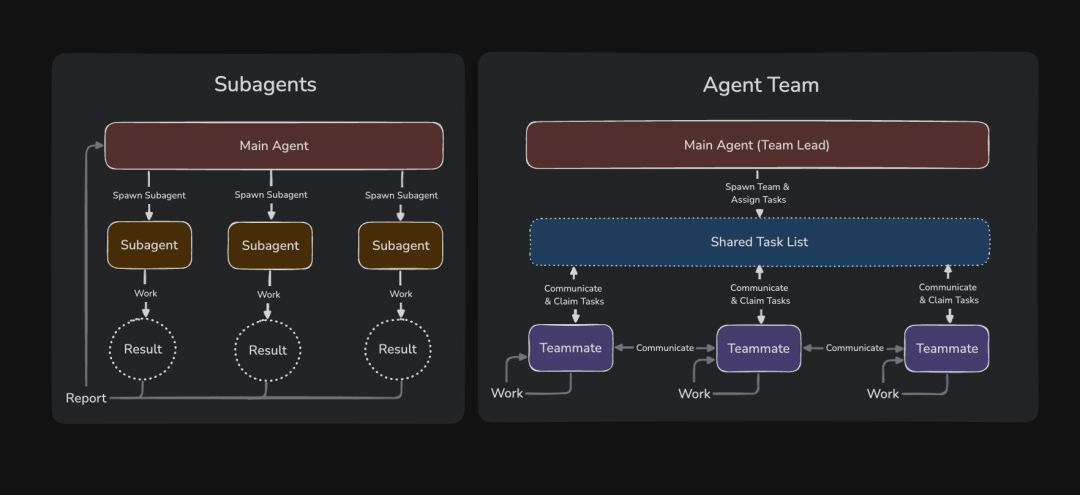
Claude Code has dropped another major feature: Agent Teams, which can be understood as a super-enhanced version of Sub Agents. Below is a comparison between Agent Teams and Subagents:
 I've "tried it first"! (So satisfying! So satisfying! So satisfying!)
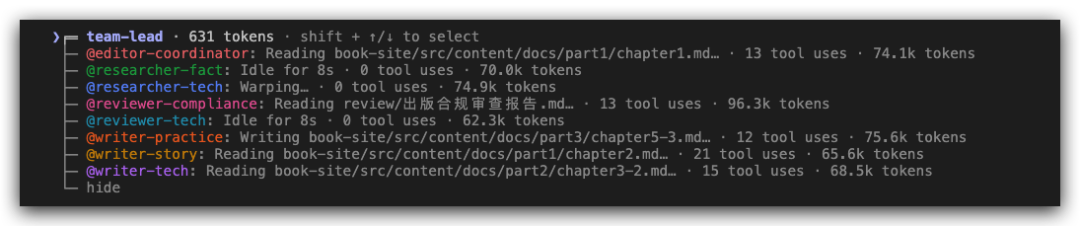 Conditions to enable Agent Teams:
1. Update Claude Code to the latest version (claude update)
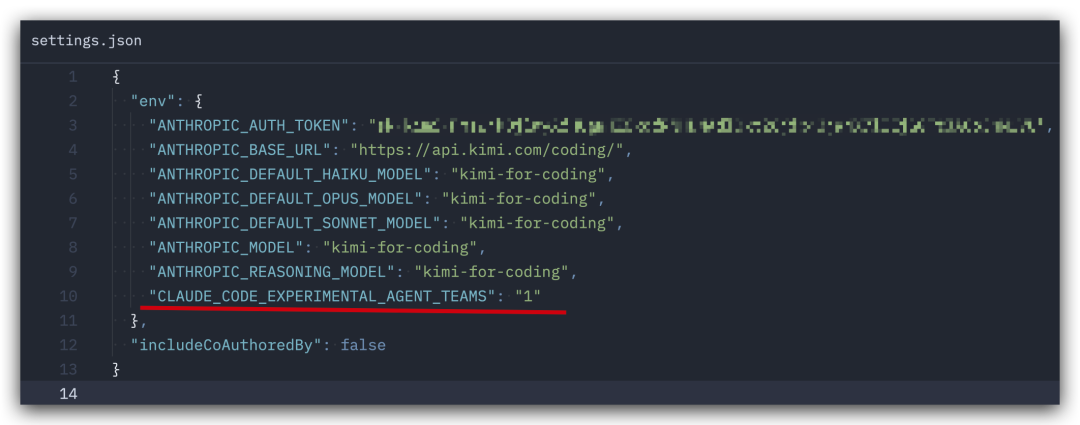
2. Add this line in settings.json:
"CLAUDE_CODE_EXPERIMENTAL_AGENT_TEAMS": "1" 3. Restart Claude Code.
4. Then directly use natural language to ask Claude Code to create an Agent Team (of course, clearly explain what the Agent Team should do)
Additionally, other models do not affect the work of Agent Teams (I used KIMi for coding)
 For more details about Agent Teams, see below (official article by Anthropic)!
Agent Teams allow you to coordinate multiple Claude Code instances to work together. One session acts as the lead, coordinating work, assigning tasks, and synthesizing results. The teammates work independently, each within their own context window, and can directly chat with each other.
Unlike subagents (which run within a single session and can only report to the main agent), you can also directly interact with individual teammates without going through the lead.
This document covers:
• When to use Agent Teams, including best use cases and comparison with subagents
• Starting a team
• Controlling teammates, including display modes, task assignment, and delegation
• Best practices for parallel work
When to Use Agent Teams
Agent Teams are most effective for tasks where parallel exploration adds real value. The strongest use cases include:
• Research and Review — Multiple teammates can simultaneously investigate different aspects of a problem, then share and challenge each other's findings
• New Modules or Features — Teammates can each own independent parts without interfering
• Debugging with Competing Hypotheses — Teammates test different theories in parallel to find answers faster
• Cross-Layer Coordination — Changes spanning frontend, backend, and testing, each handled by a different teammate
Agent Teams add coordination overhead (Would you dare to use Opus4.6 to open Agent Teams🤣), significantly increasing token consumption compared to a single session. They work best when small groups can operate independently. For sequential tasks, editing the same file, or work with many dependencies, a single session or subagents are more effective.
Comparison with Subagents
Both Agent Teams and subagents allow you to work in parallel, but they operate differently. Choose based on whether your workers need to communicate with each other:
Subagents
Agent Teams
Context
Own context window; results returned to caller
Own context window; completely independent
Communication
Only report results to main agent
Teammates directly message each other
Coordination
Main agent manages all work
Shared task list, self-coordination
Best For
Focused tasks where only results matter
Complex work requiring discussion and collaboration
Token Cost
Lower: results aggregated back to main context
Higher: each teammate is an independent Claude instance
Use subagents when you need fast, focused workers reporting results. Use Agent Teams when the group needs to share findings, challenge each other, and self-coordinate.
Enabling Agent Teams
Agent Teams are disabled by default. Enable by setting the CLAUDE_CODE_EXPERIMENTAL_AGENT_TEAMS environment variable to 1, either in your shell environment or via settings.json:
{
"env": {
"CLAUDE_CODE_EXPERIMENTAL_AGENT_TEAMS": "1\After enabling Agent Teams, tell Claude to create an Agent Team, describing the task and your desired team structure in natural language. Claude creates the team, generates teammates, and coordinates work based on your prompt.
This example works well because the three roles are independent and can explore the problem without waiting for each other:
Create an agent team to explore this from different angles: one teammate on UX, one on technical architecture, one playing devil's advocate.
From there, Claude creates a team with a shared task list, generates teammates for each perspective, lets them explore the problem, synthesizes findings, and attempts to clean up the team when done.
The lead's terminal lists all teammates and their work. Use Shift+Up/Down to select a teammate and message them directly.
Control Your Agent Team
Tell the lead what you want in natural language. It handles team coordination, task assignment, and delegation based on your instructions.
Choose Display Mode
Agent Teams support two display modes:
• In-process mode — All teammates run within your main terminal. Use Shift+Up/Down to select a teammate and type to send a message. Works in any terminal, no extra setup needed.
• Split-pane mode — Each teammate has its own pane. You can see everyone's output simultaneously, click a pane to interact directly. Requires tmux or iTerm2.
The default is "auto," which uses split-pane if you're already running in a tmux session, otherwise uses in-process mode.
To force in-process mode for a single session, pass the flag:
claude --teammate-mode in-process
Specify Teammates and Models
Claude decides how many teammates to generate based on your task, or you can specify exactly what you want:
Create a team with 4 teammates to refactor these modules in parallel. Use Sonnet for each teammate.
Require Teammate Plan Approval
For complex or risky tasks, you can require teammates to plan before implementing. Teammates work in read-only planning mode until the lead approves their approach:
Spawn an architect teammate to refactor the authentication module. Require plan approval before they make any changes.
When the teammate completes the plan, it sends a plan approval request to the lead. The lead reviews the plan and approves or rejects it with feedback.
Use Delegation Mode
Without delegation mode, the lead sometimes starts implementing tasks itself instead of waiting for teammates to finish. Delegation mode prevents this by restricting the lead to coordination tools only. Press Shift+Tab to switch to delegation mode.
Talk Directly to Teammates
Each teammate is a full, independent Claude Code session. You can message any teammate directly:
• In-process mode: Use Shift+Up/Down to select a teammate, then type to send a message. Press Enter to view the teammate's session, then press Escape to interrupt their current turn. Press Ctrl+T to toggle the task list.
• Split-pane mode: Click a teammate's pane to interact directly with its session.
Assign and Claim Tasks
A shared task list coordinates the team's work. The lead creates tasks, teammates complete them. Tasks have three statuses: pending, in progress, completed. Tasks can also depend on other tasks.
The lead can explicitly assign tasks, or teammates can claim them themselves after finishing a task.
Shut Down Teammates
To gracefully end a teammate's session:
Ask the researcher teammate to shut down
The lead sends a shutdown request. The teammate can approve and exit gracefully, or reject and explain why.
Clean Up the Team
When finished, ask the lead to clean up:
Clean up the team
This removes shared team resources. When the lead runs cleanup, it checks for active teammates and fails if any are still running, so shut them down first.
How Agent Teams Work
Architecture
An Agent Team includes:
• Lead: The main Claude Code session that creates the team, generates teammates, and coordinates work
• Teammates: Independent Claude Code instances that each handle assigned tasks
• Task list: Shared list of work items that teammates claim and complete
• Mailbox: Message system for communication between agents
The system automatically manages task dependencies. Teams and tasks are stored locally:
• Team configuration: ~/.claude/teams/{team-name}/config.json
• Task list: ~/.claude/tasks/{team-name}/
Context and Communication
Each teammate has its own context window. When generated, teammates load the same project context as a regular session: CLAUDE.md, MCP servers, and skills. The lead's conversation history is not passed along.
How teammates share information:
• Automatic messaging: When a teammate sends a message, it's automatically delivered to the recipient
• Idle notifications: When a teammate finishes and stops, it automatically notifies the lead
• Shared task list: All agents can see task status and claim available work
Token Usage
Agent Teams use significantly more tokens than a single session. Each teammate has its own context window, and token usage increases with the number of active teammates. For research, review, and new feature work, the extra tokens are often worthwhile. For routine tasks, a single session is more cost-effective.
Use Case Examples
Run Parallel Code Reviews
A single reviewer tends to focus on one type of issue at a time. Splitting review criteria into independent domains means security, performance, and test coverage get thorough attention simultaneously.
Create an agent team to review PR #142. Spawn three reviewers: one focused on security implications, one checking performance impact, one validating test coverage. Have them each review and report findings.
Investigate with Competing Hypotheses
When the root cause is unclear, a single agent tends to stop searching after finding one plausible explanation.
Users report the app exits after one message instead of staying connected. Spawn 5 agent teammates to investigate different hypotheses. Have them talk to each other to try to disprove each other's theories, like a scientific debate. Update the findings doc with whatever consensus emerges.
Best Practices
Give Teammates Enough Context
Teammates automatically load project context but don't inherit the lead's conversation history. Include task-specific details in the generation prompt.
Size Tasks Appropriately
• Too small: Coordination overhead outweighs benefits
• Too large: Teammates work too long without checking in, increasing risk of wasted effort
• Just right: Self-contained unit that produces a clear deliverable
Wait for Teammates to Finish
Sometimes the lead starts implementing tasks itself instead of waiting for teammates to finish. If you notice this:
Wait for your teammates to complete their tasks before proceeding
Avoid File Conflicts
Two teammates editing the same file can cause overwrites. Split work so each teammate owns a different set of files.
Monitor and Guide
Check on teammates' progress, redirect approaches that aren't working, and synthesize findings as things progress.
Limitations
Agent Teams are experimental. Current limitations:
• In-process teammates don't support session recovery: /resume and /rewind won't restore in-process teammates
• Task status can lag: Teammates sometimes fail to mark tasks as completed
• Shutdown can be slow: Teammates finish their current request before shutting down
• One team per session: A lead can only manage one team at a time
• Nested teams not supported: Teammates can't spawn their own teams
• Lead is fixed: The session that creates the team is the lead for its lifetime
• Split-pane requires tmux or iTerm2: Not supported in VS Code integrated terminal, Windows Terminal, or Ghostty



