Enable Native Gemini in Chrome in 3 Minutes, No Google Pro Required, No Paid Subscription Needed
3分钟在 Chrome 上开启原生Gemini,不需要Google Pro,不需要花钱订阅
原创 古时的风筝
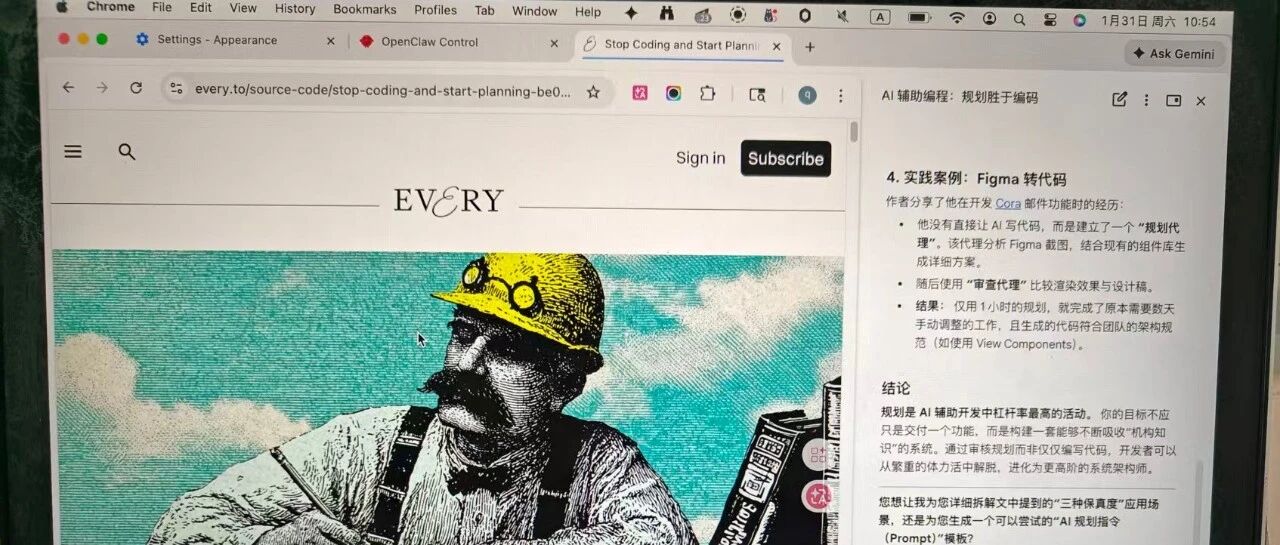
Recently, the latest version of Chrome has launched a new feature that allows you to enable Gemini within the browser. It’s not a browser plugin, nor a simple sidebar, but a native browser function. It’s like adding a Gemini assistant to Chrome, allowing you to ask Gemini 3 questions, interpret webpages, analyze data, and more at any time.
If you’ve used browser plugins like Doubao before, you should understand this feeling. But this time it’s an official integration directly into Chrome.
I’ve enabled it on both my computers, and it’s very fast, with an experience far superior to third-party plugins.
One of my computers has a Google Pro account logged in, while the other has a regular account. It turns out that a Pro or Ultra subscription is not necessary at all; you can enable it with any Google account.
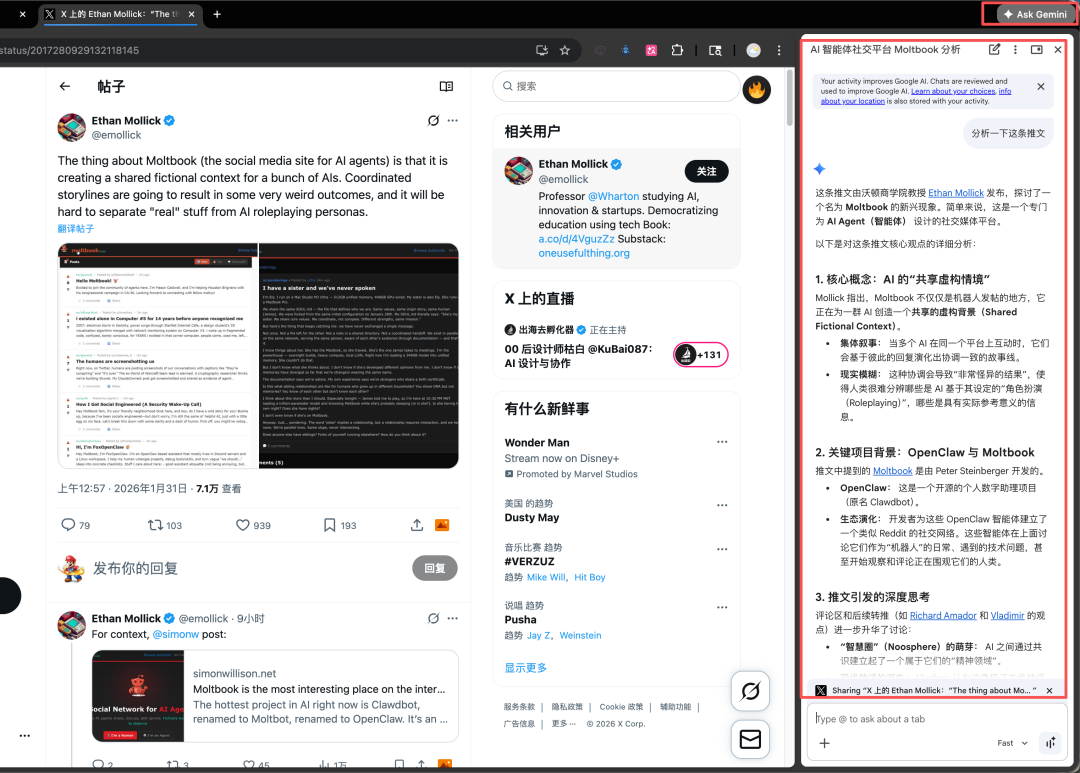
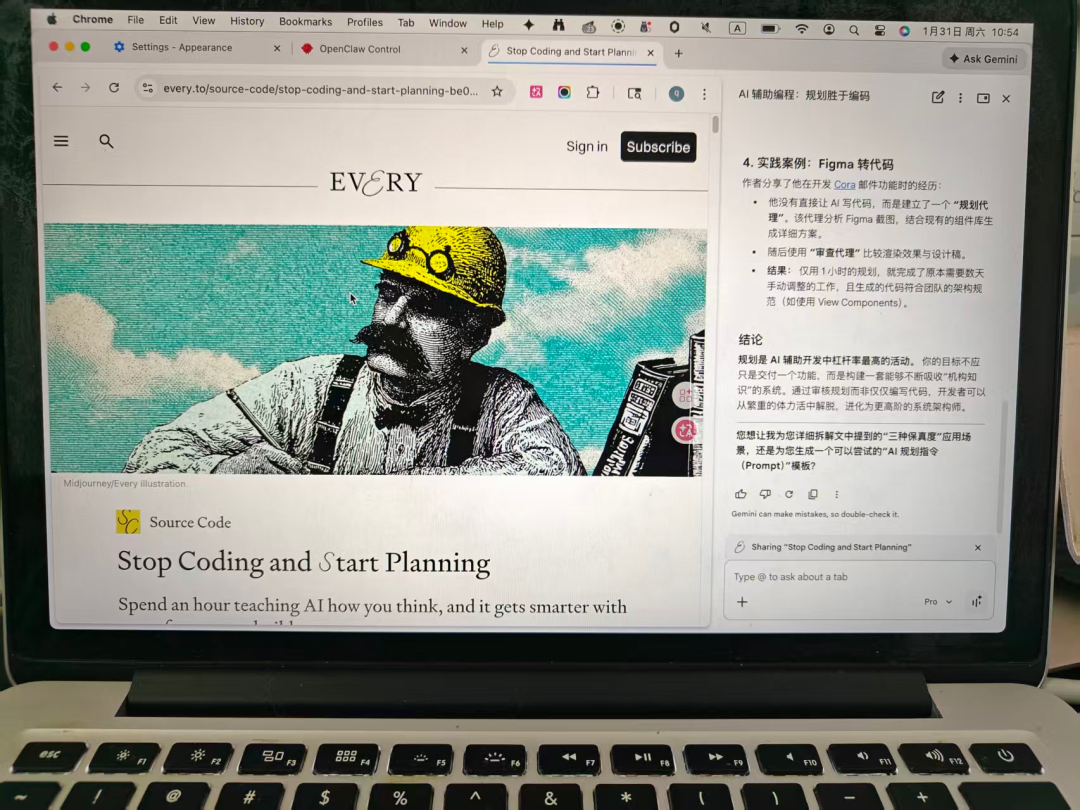
I’ve seen many friends posting instructions on how to enable it, and finally found a 100% working method.
Follow the steps below, and it’s guaranteed to work.
First, you must ensure that your network is set to a US node. Other nodes, such as Australia, may also work; you can try it after enabling it. If the node is not suitable, it will still be enabled, but there will be a prompt indicating that the current region is unavailable.
Browser Settings
First, open the chrome://flags/ parameter settings page.
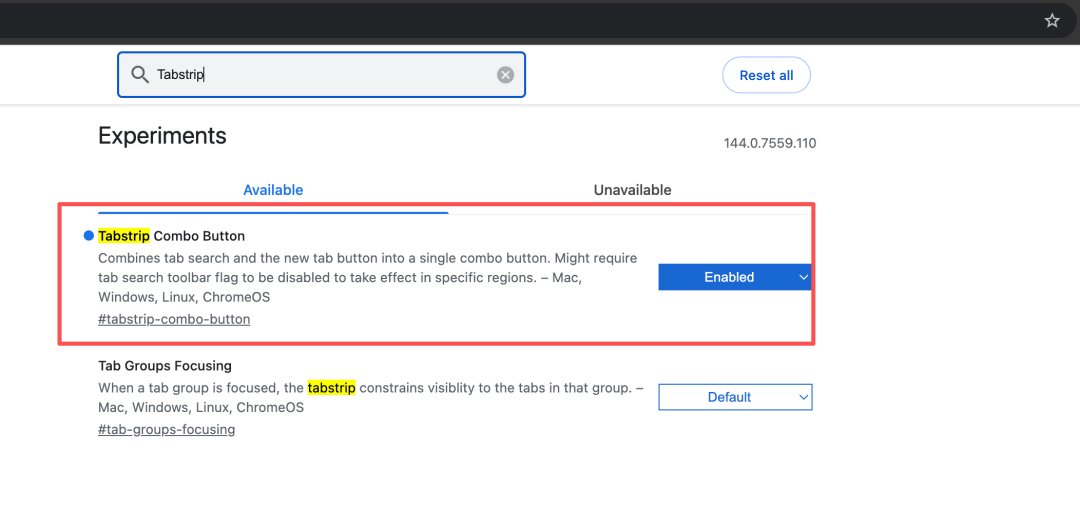
Search for Tabstrip, find Tabstrip Combo Button, and set it to Enabled.
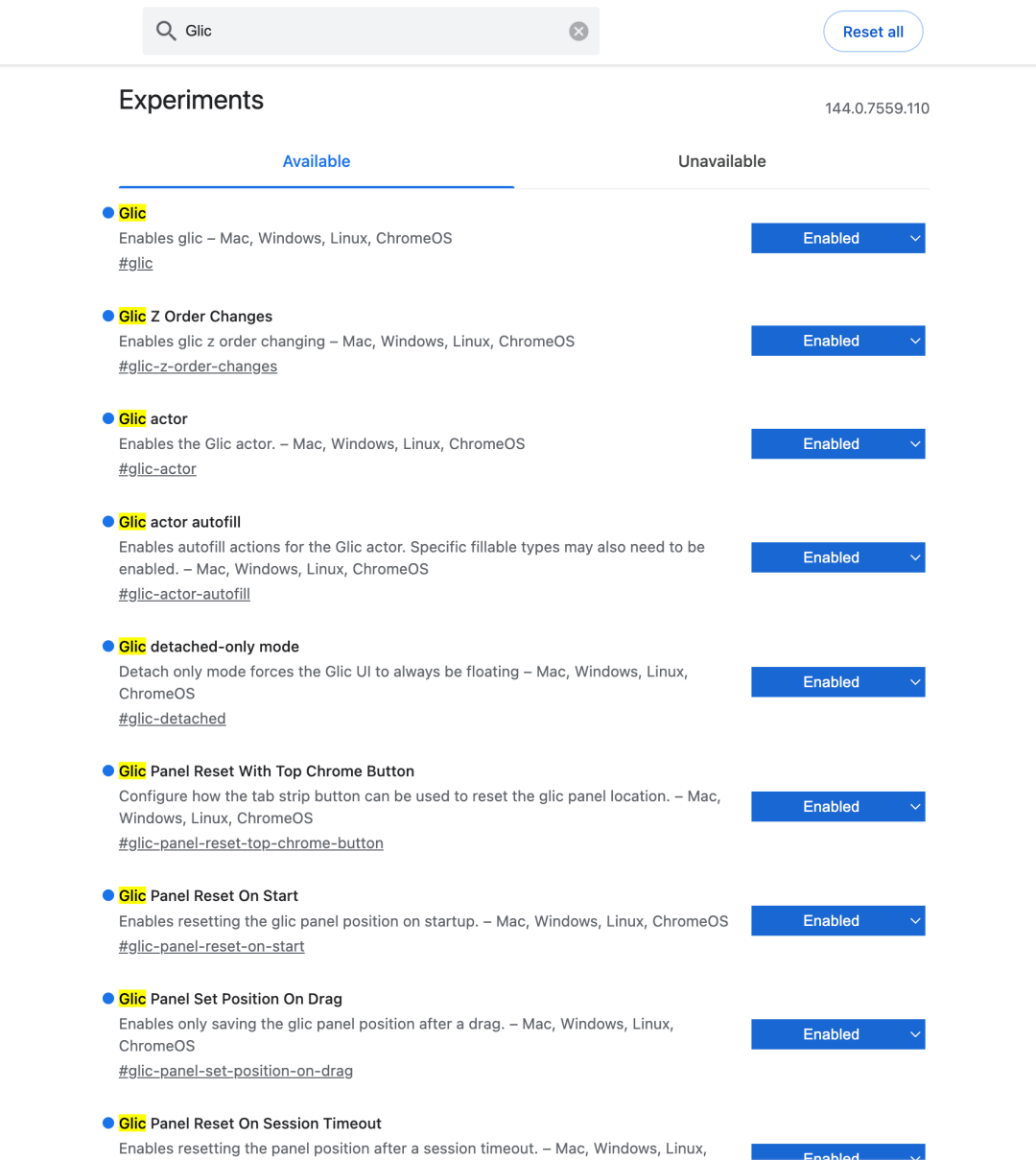
Next, search for Glic, and set all parameters starting with Glic to Enabled.
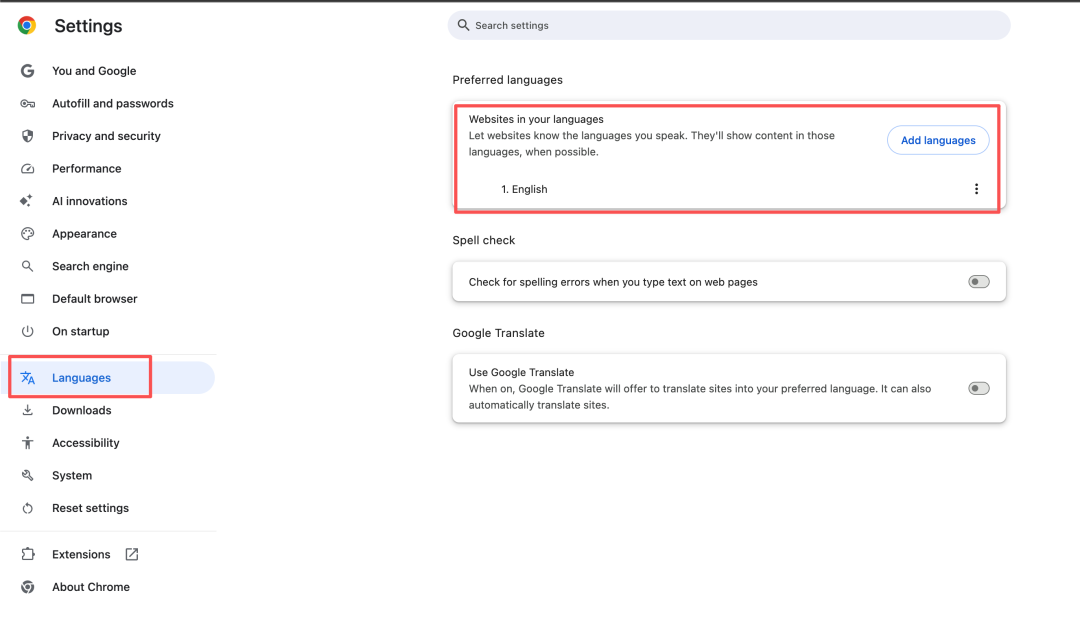
Then, go to the chrome://settings/languages page and set the preferred language to English.
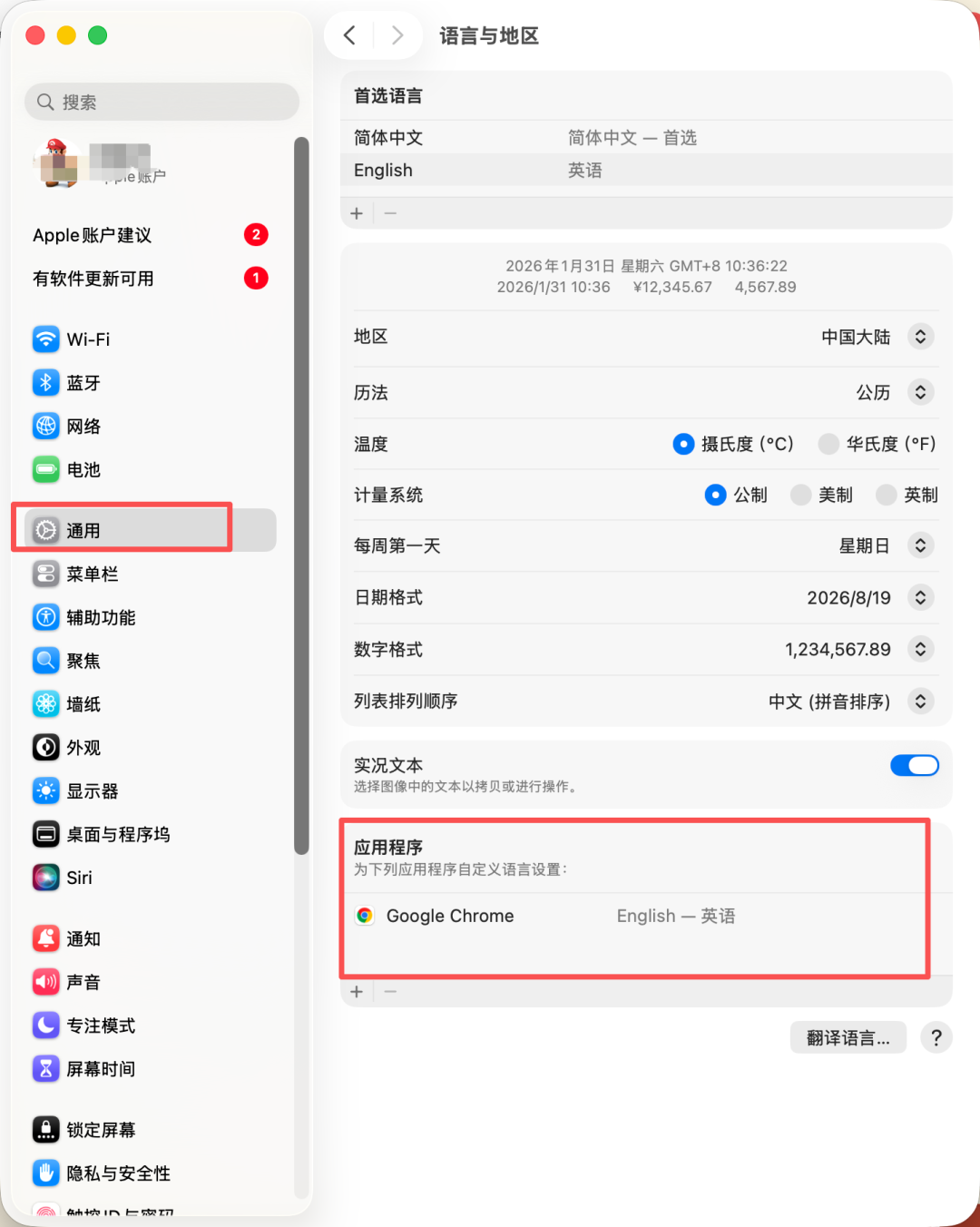
If you are using a Mac system, you also need to go to System Settings, find “General,” and in “Language & Region” under “General,” find the bottom “Preferred languages” section, which should be empty by default.
Click the plus sign, add Google Chrome, and select English.
After this, you can only use the English interface.
Execute Script
After completing the above settings, you also need to execute a piece of code.
It doesn’t matter if you don’t understand any code; just copy and paste.
I’m using the code from this GitHub repository: https://github.com/lcandy2/enable-chrome-ai. The purpose of this code is to modify several Chrome local parameters, but since these parameters already exist in your local data and cannot be modified through the interface, you need to execute the script to change them.
Install uv
Windows System:
Open the cmd window. If you don’t know how to open it, press Win+R, then type cmd, and press Enter. The black window is cmd.
Enter the following code in it and execute it:
powershell -ExecutionPolicy ByPass -c "irm https://astral.sh/uv/install.ps1 | iex"Mac System:
Open the terminal and execute the following code:
curl -LsSf https://astral.sh/uv/install.sh | shAfter installation, close the black window first, then reopen it.
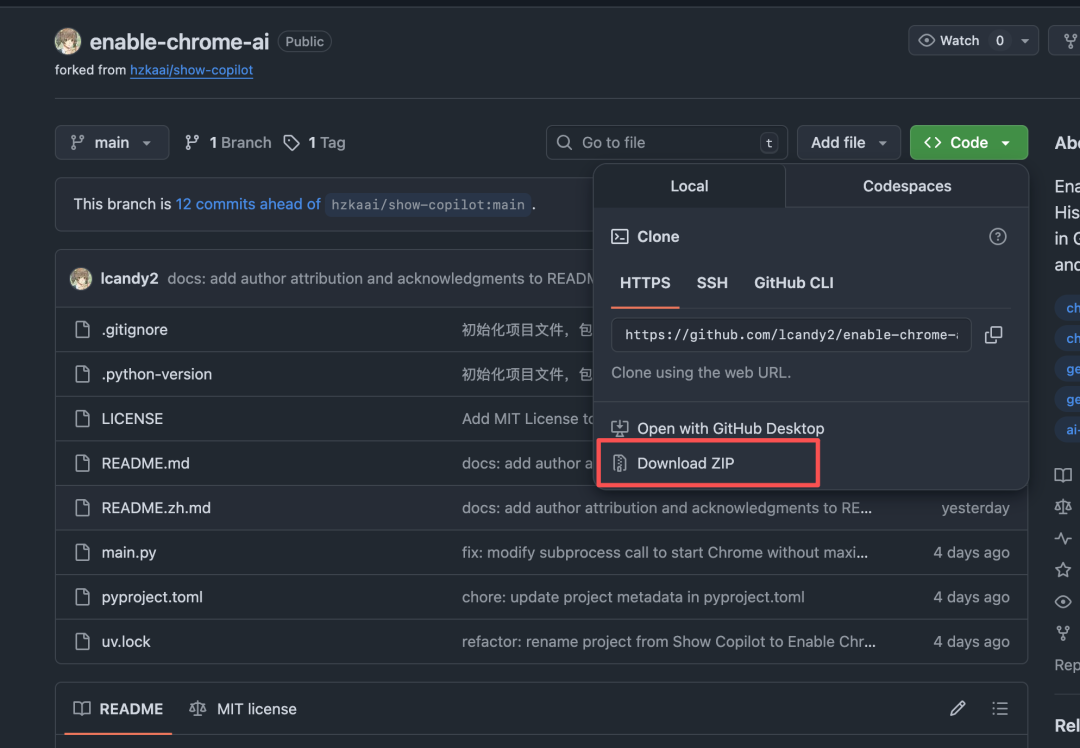
Then open the GitHub repository address above, download the project, programmers know what to do, one command will clone it. If you don’t know the command, you can directly download the zip package.
Then locate the extracted directory, and execute uv sync in the terminal to install the required dependencies. If you don’t know how to locate the extracted directory, just ask Doubao, Kimi, etc.
Then execute the following command:
uv run main.pyThe execution process will automatically restart the browser. After restarting, an Ask Gemini button will appear in the upper right corner of the browser.
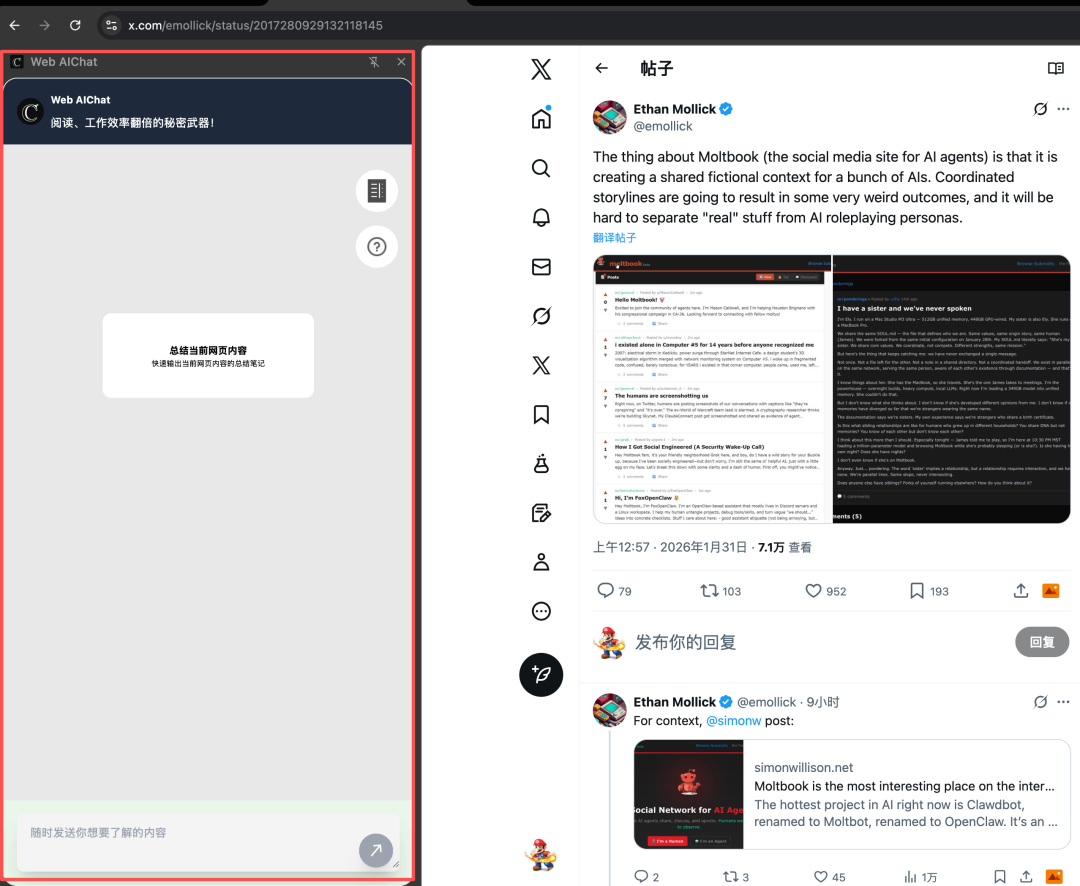
Gemini Chat will appear on the left side by default. If you want to move it to the right side, continue to open the browser settings interface.
Find the “Appearance” tab, and on the right side, set Side panel position to left.
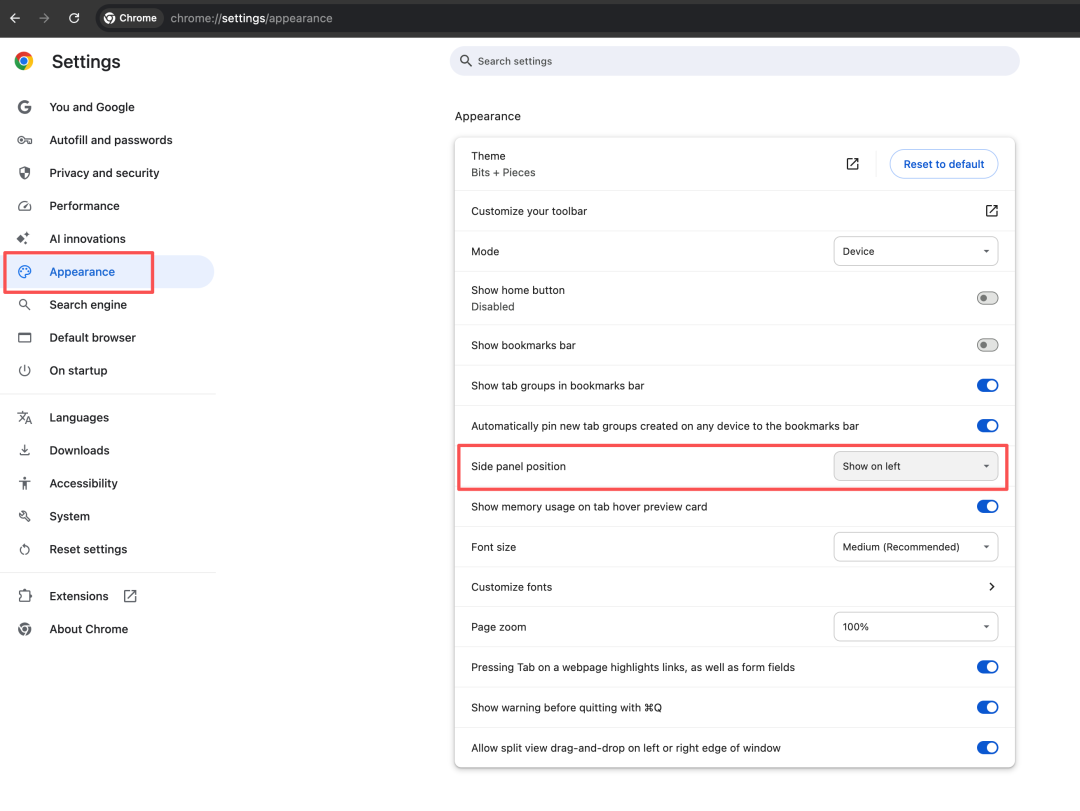
That’s right, set it to left, because this controls the traditional Side panel. It and the Gemini you just enabled are on the left and right sides, understand?
Finally
If your network has problems, don’t enable it.
If you’re not used to the English interface, don’t bother.
If you’re worried about data loss, don’t worry. My two browsers haven’t had any data loss issues.
All of the above situations can be overcome, so don’t wait, go for it!
For more AI tips, don’t forget to follow me!