Use Your Phone to Remotely Control Your AI Tools (Claude Code) and Let It Work for You 24/7
Recently, when using Claude Code, I often have CC execute long tasks before I leave work, but sometimes it might go off track, or I need to complete some confirmation work. I only find out the task has been suspended when I get to the office the next day.
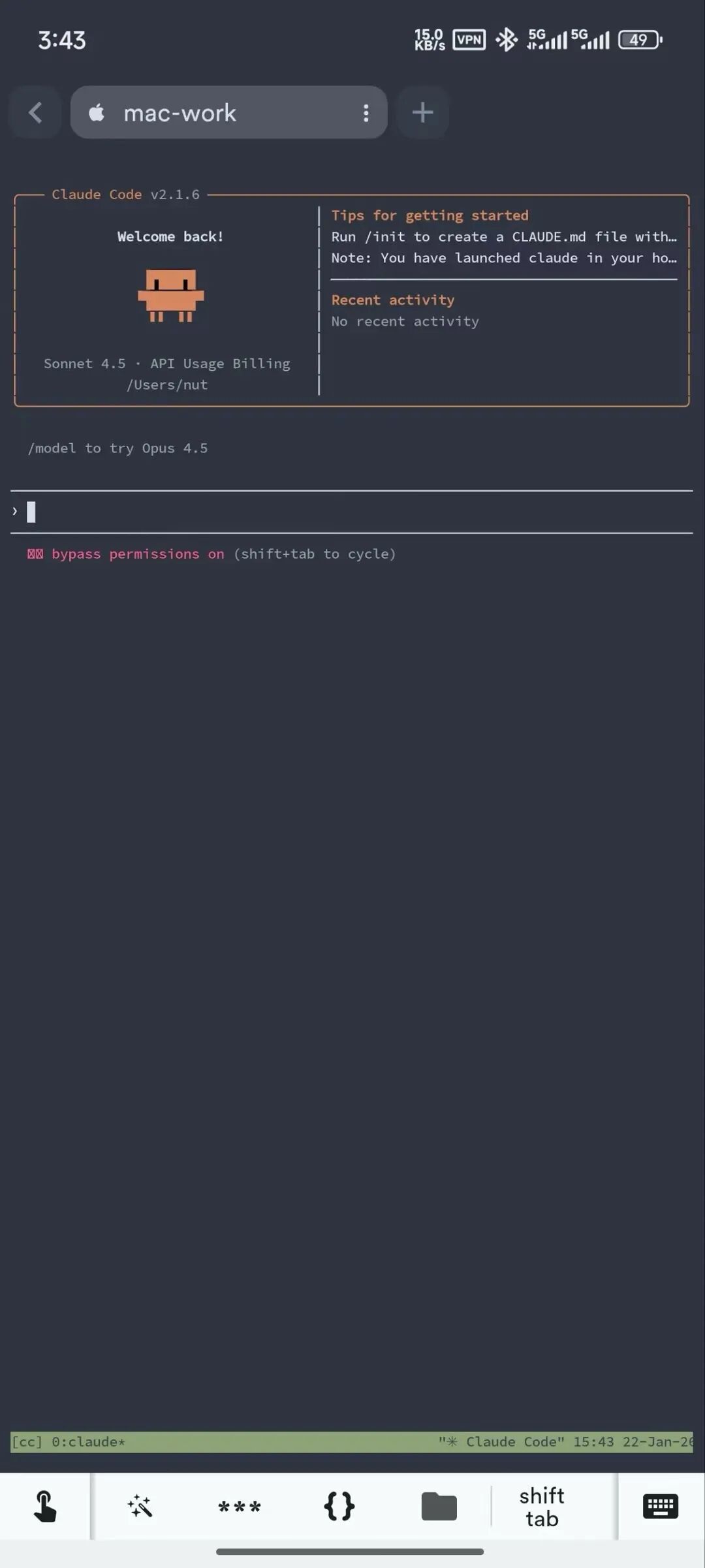
So, I came up with a set of unorthodox methods to use my phone to manage CC tasks on my computer. The effect is roughly like this:
0x01
The specific implementation requires the following tools/software:
-
• A home computer (Mac, Windows, or Linux, this article uses Mac as an example)
-
• A mobile phone (Android or iPhone)
-
• Both devices can access the internet (keep the home computer turned on)
| Device | Software | Function |
|---|---|---|
| Home Computer | Tailscale | Create a "virtual intranet" to let the phone find the computer |
| Home Computer | tmux | Keep the session uninterrupted (core function) |
| Mobile Phone | Tailscale App | Join the virtual intranet |
| Mobile Phone | Terminal App (e.g., Termius) | Operate the computer on the phone |
Tailscale and Termius are both paid software (subscription-based), but their basic functions are free to use, which is enough. Tailscale also has a free open-source server-side implementation that can be replaced.
Step 1: Install Tailscale
The role of Tailscale is to allow the phone and computer to be in the same "virtual network", even if they are in different places and different networks (for example, the computer is at home and the phone is in a coffee shop), they can still find each other.
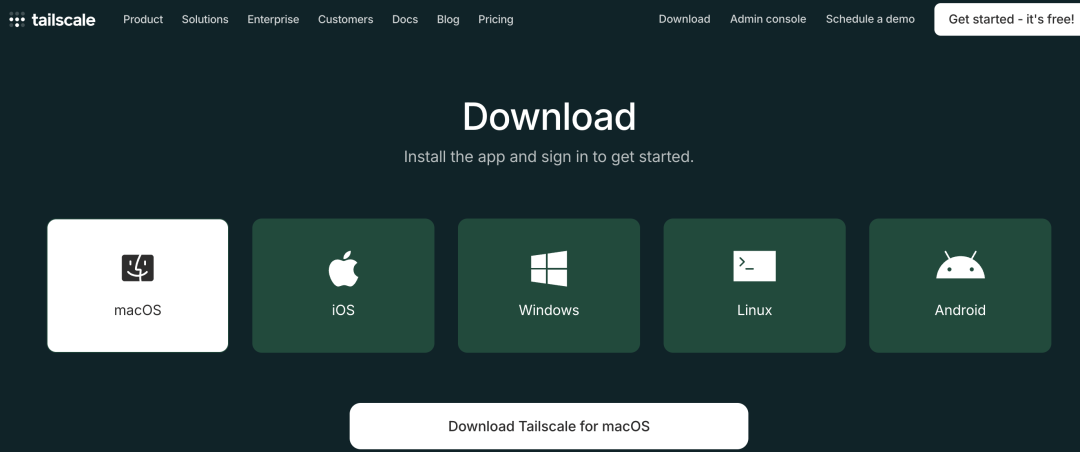 Operation steps:
-
- Open your computer browser and visit https://tailscale.com
-
- Click "Download" and select your computer system (Mac, Windows, or Linux)
-
- Download and install it, the installation process is like installing ordinary software
-
- After the installation is complete, a login interface will pop up, log in with a Google account or GitHub account (free registration)
-
- After logging in successfully, Tailscale will automatically run in the background and display Connected
 The mobile terminal is similar. After installation, log in with the same account. After logging in, the App will display "Connected".
Now, your phone and computer are already in the same virtual network! They can "see" each other, just like being under the same router.
Step 2: Enable Remote Login on the Computer
This step is to allow the computer to be remotely accessed via SSH (a secure connection method). Perform the following operations on Mac:
`# Run the command sudo launchctl load -w /System/Library/LaunchDaemons/ssh.plist
sudo launchctl list | grep ssh`

Windows/Linux: If you are using Windows or Linux, you need to enable the SSH service. You can search for "Enable SSH on Windows" or "Enable SSH on Linux" for specific methods.
Step 3: Install a Terminal App on Your Phone
On your phone, you need a terminal application that can connect to SSH. It is recommended to use Termius (the free version is enough). Operation steps:
-
- Open https://termius.com/index.html, register an account and log in, then you can download the application. Or search directly in the Google Store.
-
- Install and open it.
-
- The first time you open it, you will be prompted to create a "host", skip it first, and configure it later.
Step 4: Test the Connection
Now let's test whether the phone can connect to the computer.
Step 1: Find the Computer's Virtual IP Enter the following in the computer's terminal:
tailscale statusNote the displayed IP address (e.g., 100.64.0.1)
Or you can directly open the Tailscale software to see the IP of the device that has joined the network
Step 2: Connect on the Phone
-
- Open the Termius App
-
- Click the "+" in the lower right corner → Select "Host"
-
- Fill in the information, I won’t say much about this step, it’s normal SSH connection information
If successful: You will see a terminal interface on the phone screen, and you can enter commands! This means the connection is successful.
Step 5: Install tmux
Although the above steps are completed, you can already connect to the computer, but tmux is the key to achieving "session persistence". Without it, the task will be interrupted after the SSH is disconnected; with it, the task will continue to run in the background, and you can resume the task at any time later.
Enter the following in the computer's terminal:
brew install tmuxAfter the installation is complete, enter tmux -V. If the version number is displayed, it means it is successful.
0x02
After all the installations are complete, you can happily use your phone to control Claude Code on your computer.
Suppose you start a Claude Code task (or any other long task) at the company, and now you want to go out and check the progress on your phone at any time.
Scenario 1: Start a Task at the Company
Enter the following in the computer's terminal:
tmux new -s ccStart your program in the tmux session:
claude
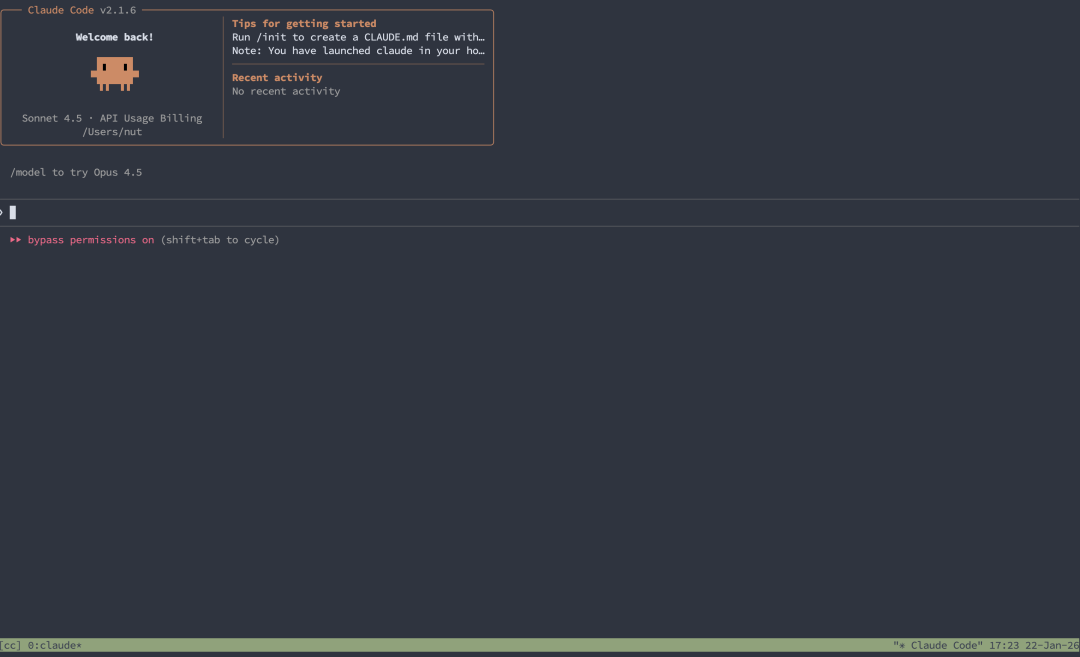
Or start any program you want to run for a long time.
Key operation: Press Ctrl+B, then press D (hold down Ctrl+B first, release, then press D)
This operation is called "detach session"

Your Claude Code will continue to run in the background, but the terminal interface will exit.
Now you can close the terminal, even turn off the computer screen, and the program will not be interrupted.
Scenario 2: Check with Your Phone After Going Out
-
- Open the Termius App on your phone
-
- Click the host you saved earlier
-
- After the connection is successful, enter in the terminal:
tmux attach -t ccA magical thing happened: you will see the exact same interface! The program is still running, the output is still continuing, just like you never left the computer.
Just like the picture at the beginning of the article!
You can continue to operate, or press Ctrl+B and then D again to detach the session, and the program will continue to run in the background.
0x03
This way, you can let Claude Code work for you 24/7. Moreover, through CC, you can also directly let it help you control the computer to perform some operations.
Why not use remote desktop? Because it is not necessary and the operation is too complicated. I only need an SSH connection, which is faster and more convenient.



