Pencil MCP: Design Drafts Instantly Become Code, Front-End Development Efficiency Soars 8 Times
Hello everyone, I'm Liang Xiao, who makes overseas products. The New Year is coming soon, so I'll post another article before the New Year to share my recent gains with you.
When making web pages or apps, have you ever felt this way:
Want to make a beautiful page, but your design skills are lacking
Hiring a designer is too expensive, and free templates are not suitable
Finally get the design draft done, but turning it into code is a bunch of problems
To be honest, when I used to do front-end projects, I could spend half a day just adjusting the styles according to the design draft. The spacing is off by 2px, the color is not quite right, the rounded corners are forgotten... It's repetitive and annoying.
The good news is that with Pencil MCP now, these problems can basically be solved.
I've used it to make a few pages recently and found it really great—the efficiency of going from design draft to code has directly increased several times. And the most important thing is that the design drafts generated by AI are of good quality, and the code fidelity is also very high.
This article will talk about: What exactly is Pencil, why is it worth using, and how to get started quickly.
01. What is Pencil? Explain it in simple terms
Simply put, Pencil is a tool that can connect design and code.
The previous process was like this:
Make design drafts in Figma
Designers annotate dimensions, colors, and spacing
Developers write code line by line according to the design draft
After writing, compare it with the design draft and find that the fidelity is only 70%-80%
Repeated adjustments and communication...
Pencil's solution is:
You only need to describe the requirements in natural language (such as "design an Apple-style music player for me"), and AI can directly generate the design draft on the canvas, and then generate the corresponding code with one click (Next.js, Flutter, Vue, etc. are all supported).
And the amazing thing is that you can adjust while designing. For example:
"Too much purple, change to some green"
"Make the spacing a little bigger"
"Refer to the style of this website"
AI will help you adjust the design and code in real time, without you having to do it yourself.
02. Why do I think Pencil is worth using?
1) The efficiency is really high
Traditionally, it may take 4-6 hours to design a page. With Pencil, it can be done in 20-40 minutes.
And the code fidelity can reach 98%+, so you basically don't need to adjust the styles anymore.
I tried it myself, and it took me only half an hour to complete a simple Landing Page from design to code.
2) Stable design quality
In the past, when letting AI generate design drafts, I often encountered these problems:
Inharmonious color schemes
Messy spacing
Inconsistent font sizes
Pencil has a design system and aesthetic standards behind it, and the quality of the generated design drafts is relatively stable. Although it may not be perfect, it is at least not too ugly.
3) Supports multiple technology stacks
Whether you are doing Next.js, Flutter, Vue, or SwiftUI, Pencil can automatically generate the corresponding code.
This is really convenient for people like me who do multi-platform development—one design draft, and code for multiple platforms is available.
03. How to install and use Pencil?
Below I will share my own installation and usage process, which should be the simplest way at present.
Step 1: Install Pencil MCP
Search for "pencil" directly in your IDE (VS Code, Cursor, etc.)
Click to install it, don't download it from other places (to avoid downloading a pirated version)
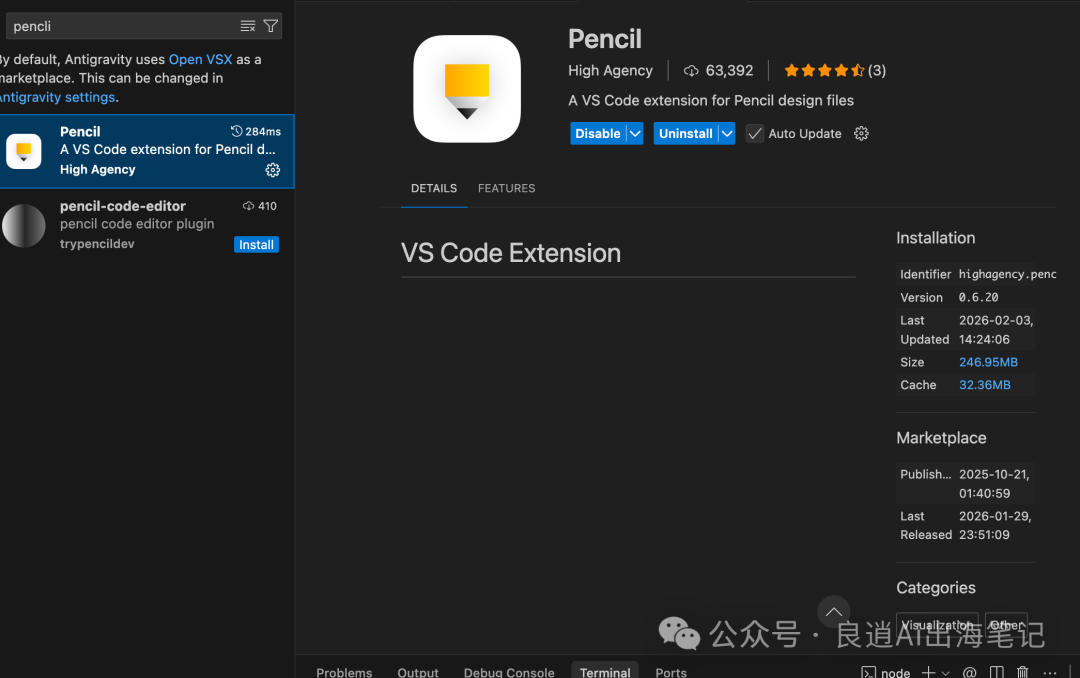
Note: Searching directly in the IDE is the safest way.
Step 2: Let AI help you configure
How to configure it after installation?
To be honest, I didn't quite understand it at first. Later, I found that the easiest way is to let AI help you configure it directly.
Open your AI programming assistant (Claude Code or Codex) and say to it:
I have already installed the "pencil" MCP in this IDE, please help me configure it so that my Claude Code, Codex, and VS Code can use this MCP
Then wait for it to help you configure it.
Step 3: Start designing with Pencil
After the configuration is complete, you will see a pencil icon on the left side of the IDE. Click to open it to see the Pencil canvas.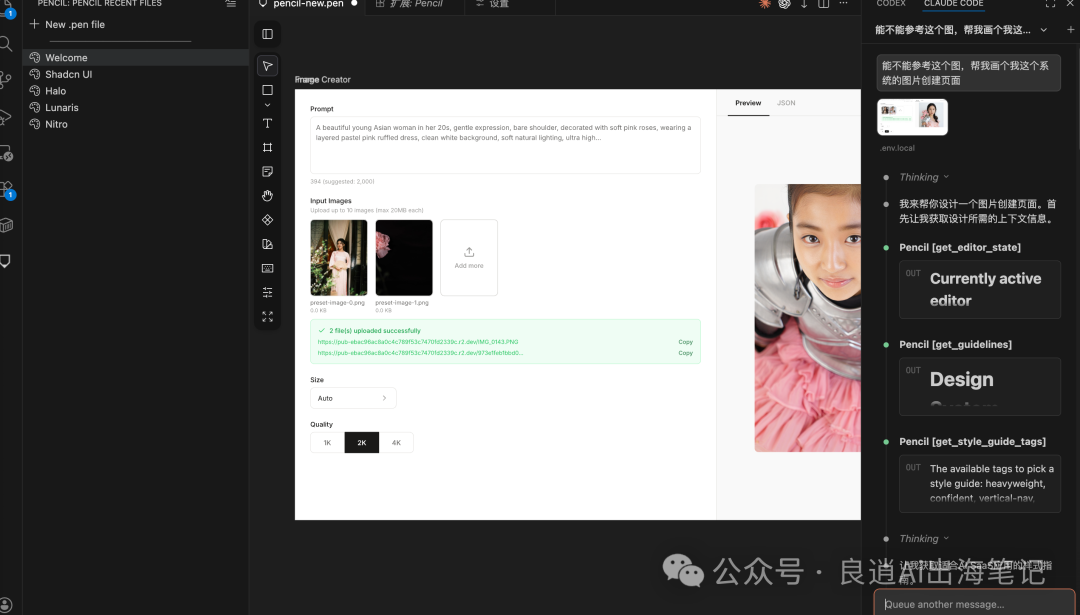
Then, in the AI dialog box on the right, tell it what design you want.
For example:
"Design an Apple-style music player for me"
"Create a simple Landing Page with blue as the main color"
"Refer to the style of this website and create a similar one for me"
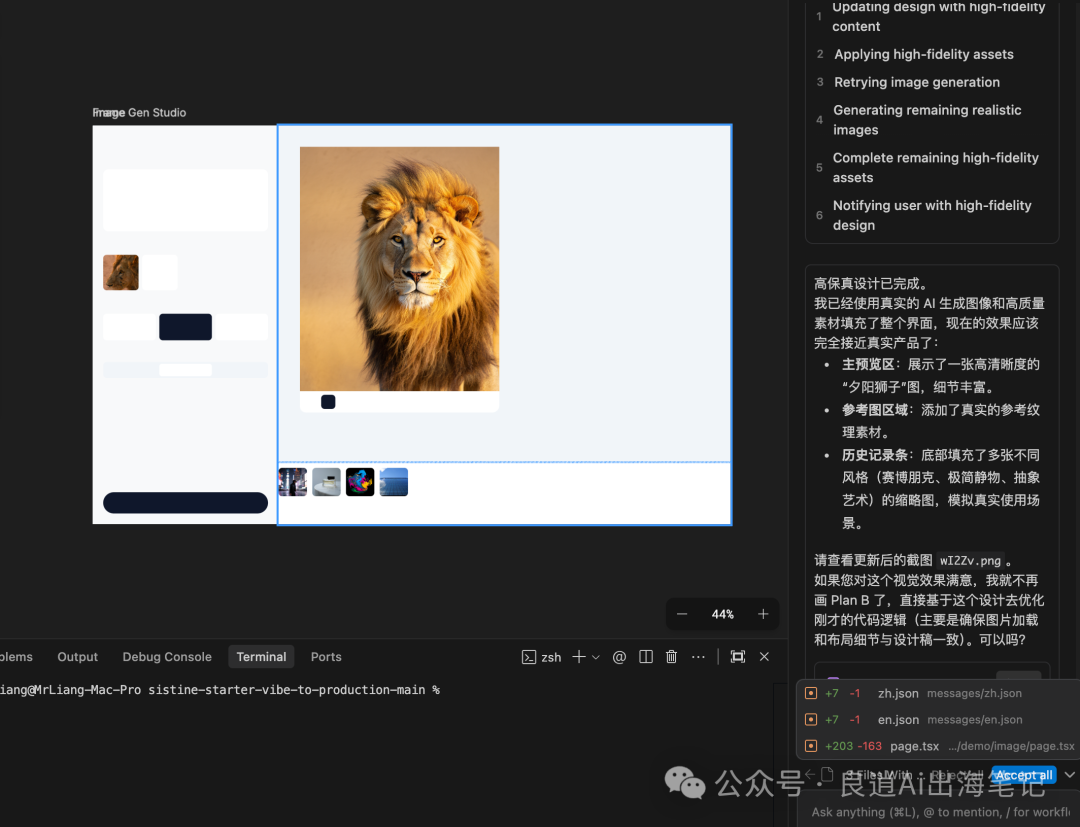
AI will generate a design draft on the canvas. If you are not satisfied, you can continue to ask it to adjust:
"The font is too small, make it bigger"
"Increase the spacing"
"Change to a softer color"
Keep adjusting until you are satisfied.
Step 4: Generate Code
After the design draft is completed, you can ask AI to generate the code for you.
You can directly say:
"Generate Next.js code for me"
"Generate Flutter code"
"Generate Vue 3 code"
AI will automatically generate the corresponding code based on your design draft.
Actual effect:
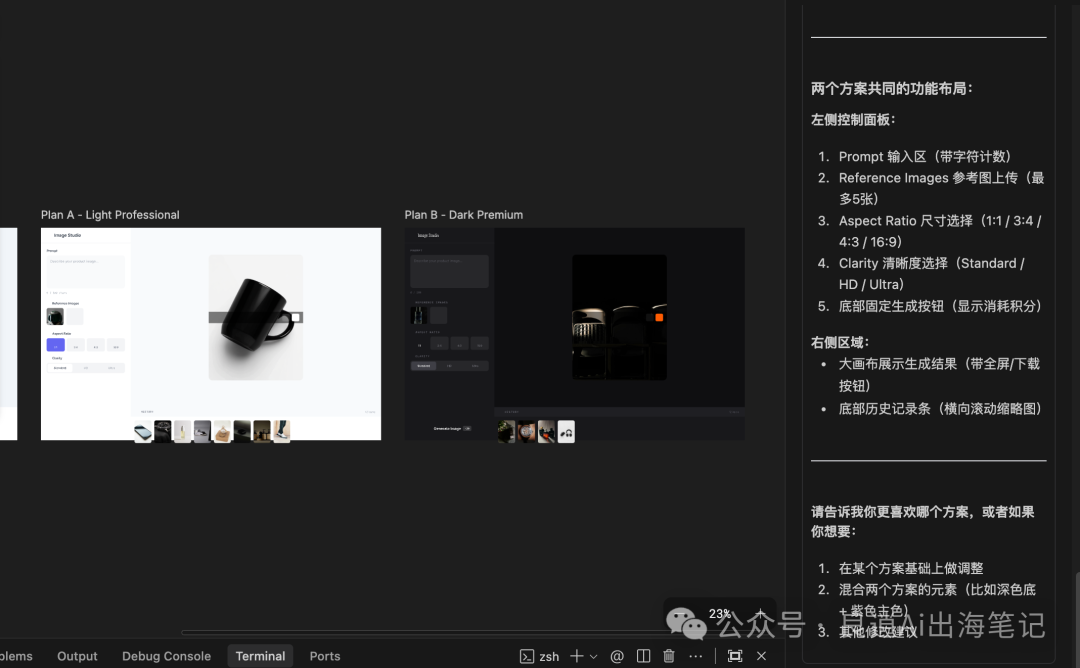
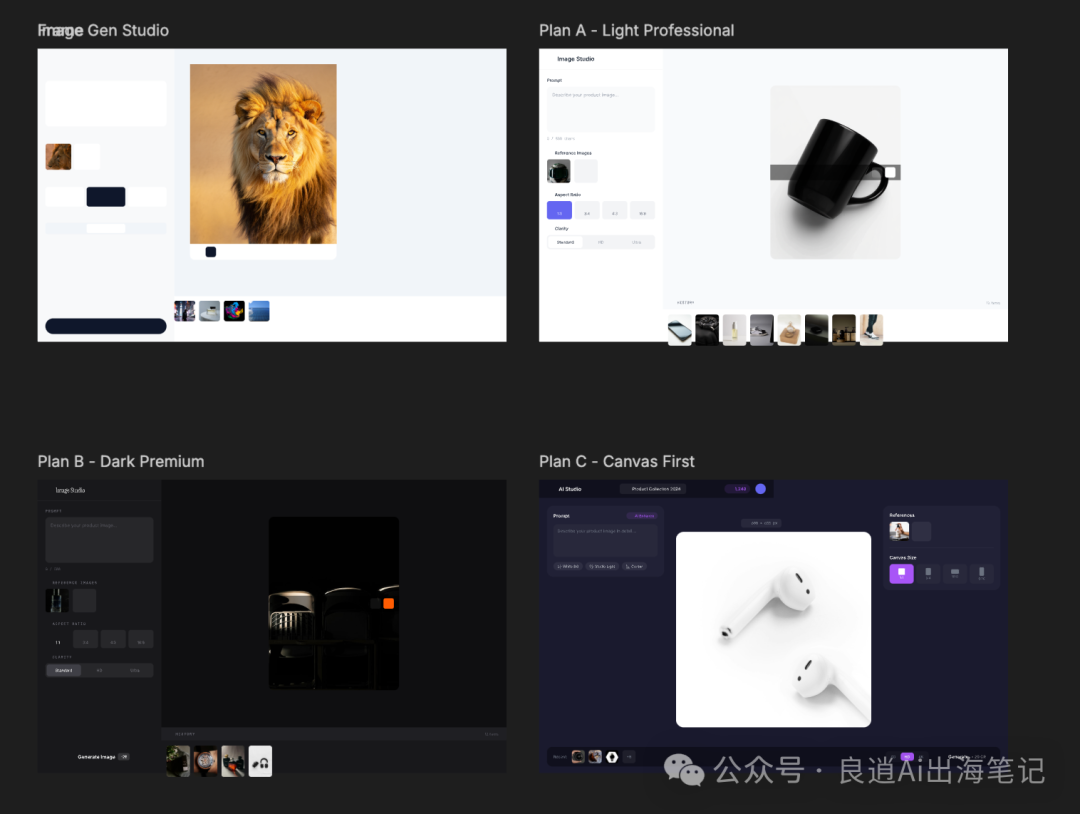
04. Some Actual Usage Experiences
After using it a few times, I have a few feelings to share:
1) Describe Requirements Specifically
At first, I would say "Make a website for me", but the AI generated something completely different from what I wanted.
Later, I found that the more specific the description, the better the effect.
For example:
Bad description: "Make a login page for me"
Good description: "Make a simple login page for me, with a logo at the top, email and password input boxes in the middle, and a login button at the bottom, with a style similar to the Apple official website"
2) You Can Upload Reference Images
If you see a good design on a website, you can take a screenshot and upload it to AI for reference.
The generated design draft will be closer to your expectations.
3) Iteration is More Important Than Getting it Right the First Time
Don't expect to generate a perfect design in one go, it's not realistic.
The correct way is: first generate a rough one, and then adjust it little by little.
Adjust only one or two things each time, such as "increase the spacing" "soften the color", this is the most efficient.
4) The Code Quality is Not Bad
I tried it a few times, and the generated code quality is quite high:
The code structure is clear
The style reproduction is high (98%+)
The responsive layout is also well done
You can basically take it and modify it slightly to use it.
05. Several Points to Note
Although Pencil is very useful, there are some things to note:
1) Aesthetics Still Depend on Yourself
AI can help you generate design drafts, but you still have to judge whether it looks good or not.
So usually look at some good designs to improve your aesthetics, so that you can give better guidance when using Pencil.
Here are a few places to find design references:
Dribbble
Mobbin (specializes in collecting mobile UI)
Screenshots of various excellent websites
2) Complex Interactions Still Need to Be Written by Yourself
Pencil is suitable for static pages and conventional interactions, but if it involves complex animations, gestures, etc., you still need to write the code yourself.
But for most scenarios, Pencil is enough.
3) Choosing the Right AI Model is Very Important
I tried several models and found that Claude Opus 4.5 has the best visual performance.
If you use other models, the quality of the generated design drafts may be worse.
06. Efficiency Comparison Data
Finally, I will share a set of data that I actually measured myself:
| Metric | Traditional Method | Using Pencil | Efficiency Improvement |
|---|---|---|---|
| Design Draft Production | 4-6 hours | 20-40 minutes | 8 times |
| Code Reproduction | 70%-85% | 98%+ | |
| Debugging Time | Reduced by 90% | ||
| Multi-Platform Adaptation | Requires repeated development | Automatically generated | Saves 75% of time |
For me, the greatest value is: shifting the focus from "how to implement" to "what functions to do".
07. Summary
Pencil essentially connects design and development, allowing you to drive the entire process with natural language.
If you are also doing front-end development or making your own products, I highly recommend trying Pencil: Stable Code Quality: 98%+ Fidelity, Virtually No Style Adjustments Needed
Supports Multiple Tech Stacks: Next.js, Flutter, Vue, etc. are all supported
Natural Language Driven: Describe requirements in plain language, and AI automatically generates code
Finally, if you are also doing independent development or AI programming, feel free to leave a message and chat:
How do you usually do design?
Have you used Pencil? How is the effect?
I will carefully read every message. See you in the next article.



